This article explains how to set up the Talent Screening Agent in Personio. The agent checks incoming applications against job requirements and highlights the results in the application list and candidate profile. This helps you focus on the strongest candidates first.
Note:
Personio is rolling out the Talent Screening Agent gradually. If you don’t see this feature in your account yet, it will become available to all accounts in the coming weeks.
Benefits
Setting up the Talent Screening Agent helps you:
- Spend less time reviewing CVs. See the most relevant information for each candidate upfront, so you don't need to read every application in detail.
- Prioritize faster. Sort applications based on how well they match your criteria. This helps you focus on the most relevant candidates first.
- Evaluate candidates consistently. The criteria you set apply to every application. This supports a fairer and more consistent process across recruiters and hiring managers.
- Keep all information in one place. Key candidate information appears directly in Personio. You don’t need to check LinkedIn, employer websites, or other external sources.
Tip:
Try and explore an interactive demo of the Talent Screening Agent before setting it up.
Before you start
Understand purpose and compliance of the Talent Screening Agent
Purpose:
The talent screening agent is an advisory tool only. It is a supportive functionality that enables you to make an application pipeline decision.
The AI evaluates only configured criteria (AI signals), meaning that a high match score reflects objective criteria fulfilment only, not overall candidate suitability. You retain full control and responsibility for all candidate decisions.
Compliance:
The agent is compliant with GDPR Art. 22 and EU AI Act Art. 14. Learn more about AI data privacy and security.
Understand how the agent flags candidate disability
The Screening agent flags candidate profiles for disability only when there is an explicit statement. For example:
- The candidate stated they have a disability in the application form.
- An officially recognized degree of disability (GdB).
- A severe disability pass or equal status notice.
The agent never infers disability status from context. It excludes chronic illness, mobility or sensory mentions, requests for workplace accommodations, sick leave, or lifestyle notes. This is by design, in line with hiring compliance requirements.
Disability is a legally sensitive category that the AI should ignore unless the candidate has stated it themselves.
Check permissions
- To enable AI features in your organization, you need the Administrator role.
- To set up AI talent screening criteria for a job, you need edit access for that job.
Meet preliminary requirements
- You need to enable AI features for your company. Go to Settings. In the Account & support section, click AI features. Enable General access and AI screening.
- The job needs at least one stage of the type Screening. To check this, go to Settings. In the Recruiting section, click Stages. The Talent Screening Agent matches only candidates in stages under Screening.
- Candidates need to attach a CV in one of the following formats for the AI to evaluate: PDF, image (JPEG, PNG, etc.) or Word (.doc/.docx).
- The CV can be uploaded under any category in the candidate profile, except those categorized as offer/outbound.
Notes:
- The Talent Screening Agent is a paid, usage-based feature. Each screened application uses AI credits from your company's credit wallet. If you want to know more about how to use tokens, see the AI Credits article.
- Documents with a very large page count or file size, or those containing low-quality scans or images, can cause parsing errors or incomplete text extraction.
Set up AI signals
Understand AI signals
In Personio, AI screening criteria are called AI Signals. You can create them manually or let the AI generate them for you across these categories:
- Location (preferred candidate location).
- Language (required languages and proficiency levels).
- Years of experience (minimum required).
- Education (field of study and degree level).
- Custom (a specific requirement not covered above).
Note:
Use criteria that are directly relevant to the role, such as location, language, education, or experience. Avoid criteria based on protected characteristics like gender, nationality, age, or religion.
Also avoid indirect proxies (for example, using a graduation year as a stand-in for age). Using such criteria can lead to discriminatory outcomes and legal risk for your organization.
Set up AI signals
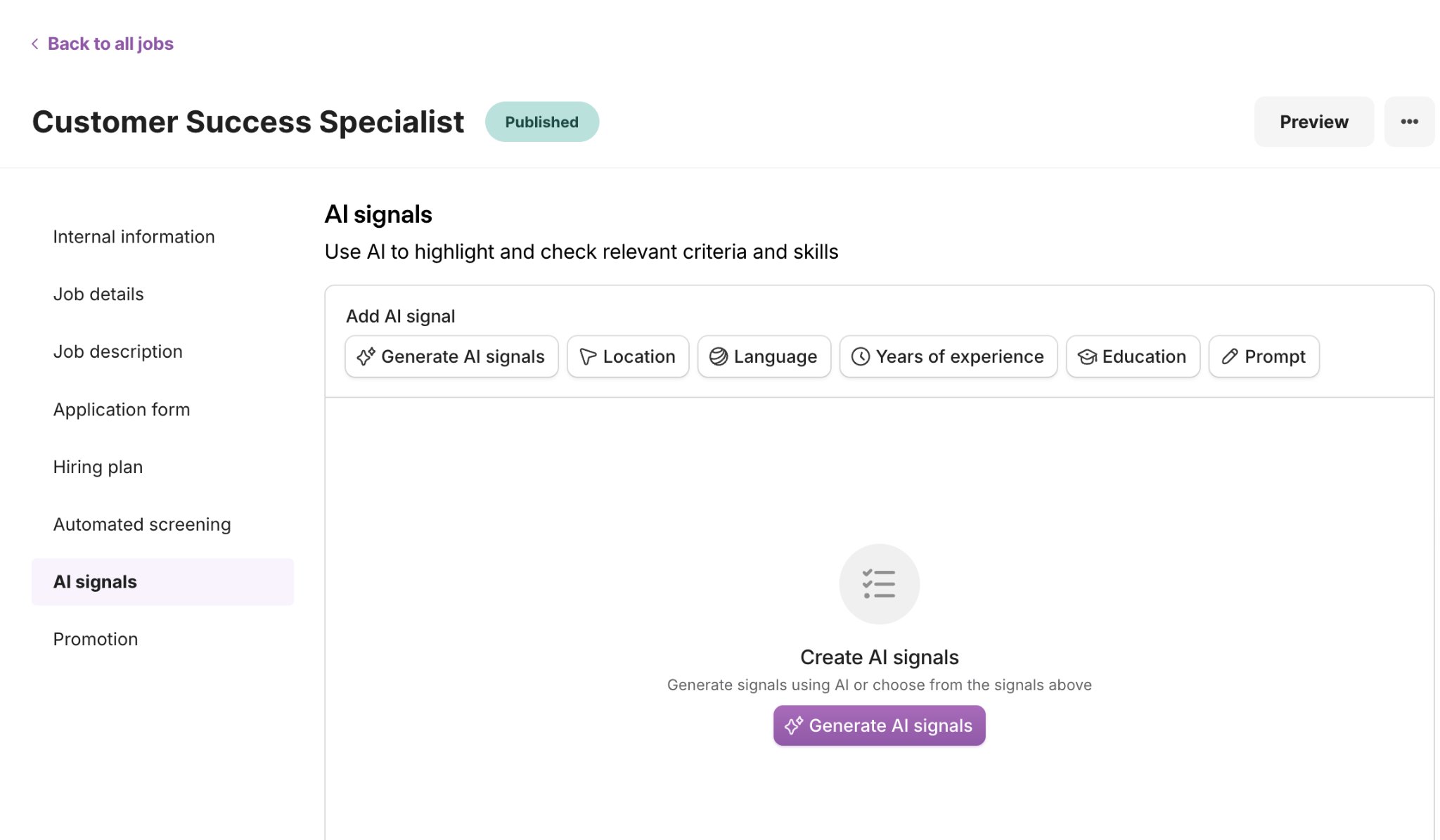
To set up AI signals, follow these steps:
- Go to Recruiting > Jobs.
- Click the relevant job, then click Edit.
- Click AI Signals.
- Select the language in which to generate AI signals.
- Click Generate AI Signals. The AI scans the job description and generates signals based on the available information.
- Review the suggested signals and edit them as needed. You can manually add missing signals.
- Optional: If you add a Custom signal, describe one specific requirement the candidate should meet. Click Optimize description to refine the wording, then save it.
- Click Publish changes. Confirm your choice.
After you save, the AI evaluates every candidate already in one of the screening phases in your pipeline against the new criteria. It automatically re-evaluates them every time you update the criteria, so you don't need to take further action.
In the candidate drawer, you can also manually trigger the matching of applications in a later pipeline stage.
Tip:
If a candidate's document is missing or unrelated to a CV, such as a photo, the AI flags it. You can still review the application manually.
Sort and review job applications with the talent screening agent
After you've set up AI signals, sort and review job applications with the talent screening agent.
Sort applications
- Go to Recruiting > Jobs.
- Click the relevant job. Click Applications.
- Click All applications.
- Click Columns and activate AI signals. You can click the icon next to the column name and drag it towards the top. This places the column on the left, making it more visible.
- Optional: Click the New applications view, where the AI Signals column is already activated.
- Click the AI signals column header and select Sort descending to see the most fitting candidates at the top.
- Optional: In the AI signals column, hover over each row to preview how well each candidate matches the signals.
Review a candidate’s application
- Click the relevant application.
- Under AI signals, see how the candidate matches against the criteria you set. The panels show the number of signals that are a match, a partial match, and those that the candidate does not match.
- Expand each signal to see a summary of the reasons why the candidate matches it or not.
- Optional: Click the thumbs-up or thumbs-down icon to rate the AI summary. Your feedback helps us improve the service.
- Under AI profile, view the standardized candidate CV. This formats all CVs consistently, making key information easier to find.
- Under Documents, you can still access the original CV for cross-checking information.
Disclose AI use in your career page data privacy statement
After you set up the screening agent, you should disclose the use of AI-assisted technology in your career page data privacy statement.
You can use the following draft as a starting point:
"To review the applications we receive efficiently, we use AI-assisted technology to support the staff involved in the application process. It analyzes the personal data in your application, in particular your CV and the qualifications, skills, experience, education, language abilities, and location relevant to the respective vacancy, and presents our staff with a structured overview of this information, together with an indication of how it corresponds to the role's requirements."
Before publishing, ask your legal team to review and adapt the draft. It is a description of how the feature works, not final legal wording.
Usage-based Personio AI credit consumption for the talent screening agent
The Talent Screening Agent from Personio consumes Personio AI Credits. They are consumed based on usage.
The Talent Screening agent consumes 80 Personio AI credits per automatically screened application.
Next steps