This article provides an overview of the Security & authentication area in Personio. In this area, you can do the following:
- Configure and manage login methods: You can choose how your employees log in to Personio. The options include Personio Credentials and 2FA, Microsoft Entra ID, Google, or another provider's single sign-on (SSO).
- Manage session inactivity timeout for your organization: With this setting, Personio automatically logs employees out after a set period of inactivity.
Access the Security & authentication area
To access the Security & authentication area, you need either an Administrator role or Edit permissions for the Account > Authentication settings section.
To access the Security & authentication area, go to Settings and then to Security & integrations.
You can enable different login methods depending on your Personio plan.
Understand the configuration status
In the Security & authentication area, you can see all login methods in a list view. For each method, you can see whether it's enabled and its current configuration status.
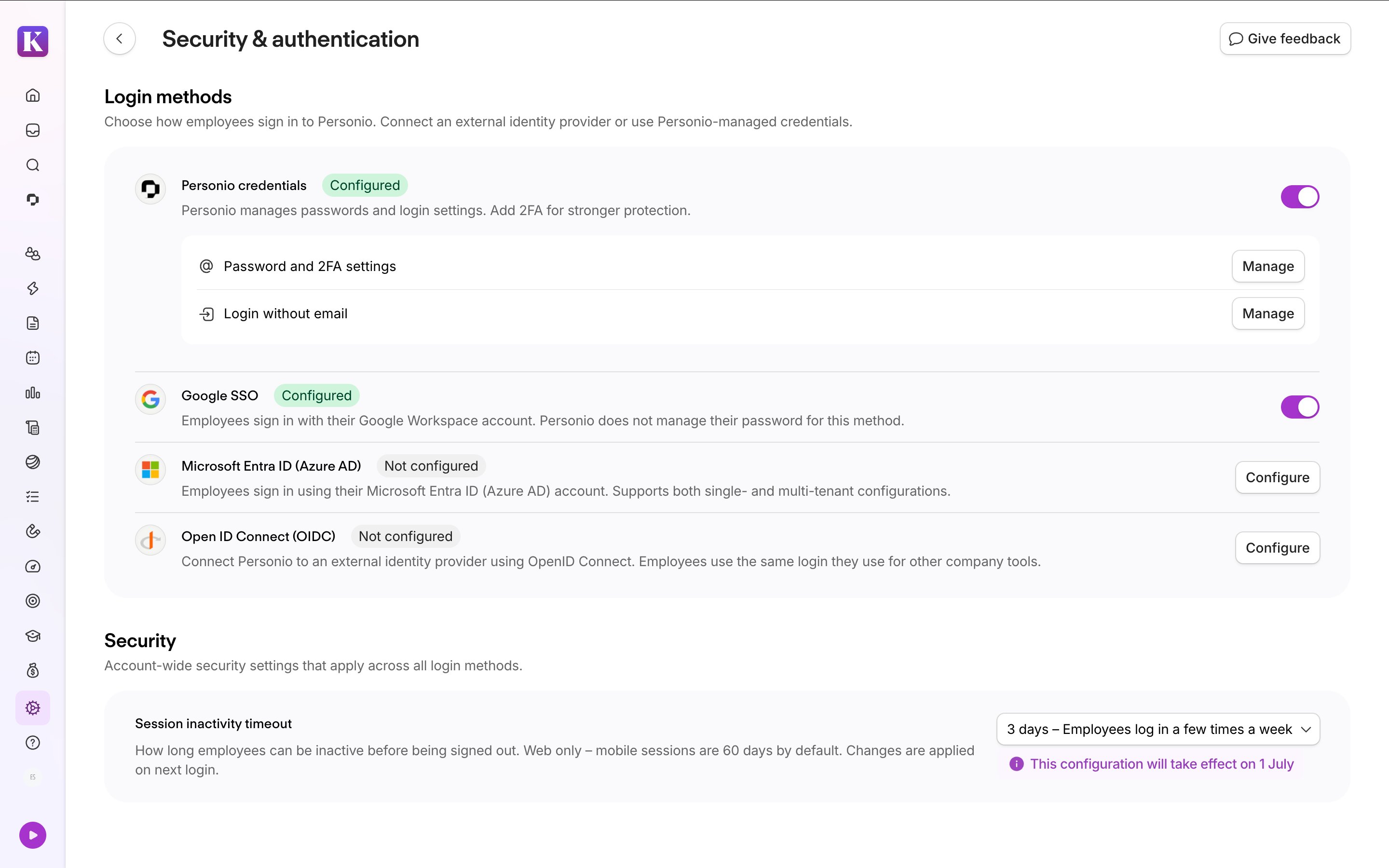
The following table describes the available statuses:
| Status | Description |
| Not configured | The method hasn't been set up yet. |
| Configured | The method has been set up. You can enable and test it. |
| Enabled | The method is active and available for employees to use. |
Keep the following in mind:
- We recommend you work with your IT team to set up SSO connections.
- You must always have at least one login method enabled.
- You can only enable a method after you’ve fully configured it.
- We recommend you test the connection once it’s enabled. This is to make sure your employees can log in with it.
- You can enable multiple methods at the same time. For example, combine Personio Credentials with Google, Microsoft Entra ID, or any other SSO provider.
Login method: Personio Credentials
Email and password, and 2FA
You can choose Personio Credentials (email and password) as your organization's login method. Employees log in with their email address and password when this method is active.
You can also activate two-factor authentication (2FA) for all employees or for specific roles. This enhances data security. With 2FA, employees log in using their email and password, along with a token from their mobile device.
Learn how to set up employee login with Personio Credentials and 2FA.
Activation code
You can allow employees without email addresses to log in using an activation code. You might use this option if you have deskless employees or those who don't log in to Personio regularly. Learn how to set up this feature in our dedicated article.
Login method: Google SSO
You can connect Personio to Google SSO using a native Google connection. With Google SSO, employees use their work Google accounts to access Personio. Google SSO is available only to organizations using Google Workspace.
Learn how to set up Google SSO.
Login method: Microsoft Entra ID SSO
You can connect Personio to Microsoft Entra ID using a native Microsoft connection. With this method, your employees can log in to Personio using their Microsoft Entra ID accounts. You can also choose a tenant model to suit your organization’s authentication needs.
Learn how to set up SSO in Personio with Microsoft Entra ID.
Login method: SSO using OpenID Connect / OAuth 2.0
You can set up SSO in Personio with an OAuth provider using OpenID Connect / OAuth 2.0.
Personio supports the OpenID Connect / OAuth 2.0 protocol. This method provides secure and standardized management of access to applications. Learn how to set up single sign-on in Personio with the following OAuth providers:
- Microsoft Entra ID (different from our native Microsoft connection)
- Okta
If you use another identity provider, you can follow these setup instructions.
Login method: SAML 2.0
You can set up single sign-on (SSO) in Personio using the SAML 2.0 standard. SAML lets you connect Personio to your organization's existing identity provider, so employees log in with their existing credentials instead of managing a separate Personio password. Personio supports any identity provider that complies with SAML 2.0, including Microsoft Entra ID (Azure AD) / ADFS, Okta, OneLogin, and JumpCloud.
Learn how to set up single sign-on (SSO) with SAML 2.0.
Security setting: Session inactivity timeout
With our session inactivity timeout setting, Personio automatically logs employees out after a set period of inactivity. For more information on managing session timeout, refer to our dedicated article.