This article explains how to create document templates and contracts that can be signed electronically. Templates must contain signature placeholders to ensure that the process of requesting and obtaining signatures from multiple people works. Use these document templates for employee documents or for contract proposals sent out during the offer process.
Create templates
To use electronic signatures in a document, you need to create a contract template with signature placeholders. You can create the document template in any popular word-processing application and upload the file in DOC, DOCX, ODT, or OTT format. Learn more about managing document categories and templates.
Note:
Once a document has been finalized and signed electronically, it is stored as a PDF file in Personio, regardless of the original file format. You can then view and download finalized documents from the respective employee or candidate profile.
Create a signature placeholder
To create a placeholder in the template, enter @@ before and after the designation. You can add up to 25 signature placeholders per document and freely choose their designations, for example, @@Candidate@@, @@Employee@@, or @@Recruiter@@.
Use consistent designations
If a person needs to sign in more than one place, be consistent in using the same designation, including the same spelling and capitalization. You should have one unique placeholder designation only for each signatory.
Assign signatories manually
The word you use within the @@ characters doesn't automatically ensure that the correct employee is assigned to the signature placeholder during the signing process. You must manually assign them when requesting a signature. However, the designations will help you to identify who a placeholder should be assigned to during this step.
Leave space for signatures
The placeholders for the signatures also determine precisely where signatories need to sign a document. So, leave sufficient blank lines where you want the signatures to be added to allow enough space. We recommend a minimum of two blank lines after the placeholder.
Avoid headers and footers
Ensure the signature placeholder hasn't been placed in the header or footer of the document. The system only recognizes signature placeholders included in the body of the text.
Prevent line wrapping
To upload a document correctly in Personio, ensure that the placeholder doesn't wrap to a new line. This can happen with placeholders inside a table if a table cell isn't large enough. The placeholder shouldn't be placed at the very end of a line or inside a small table cell.
Include additional placeholders for recruiting
For the signature function to work in contract templates you intend to use throughout the offer process in your recruiting section, the template must contain at least one other placeholder (such as {{first_name}}) next to the signature placeholder.
Note:
Signature placeholders cannot contain umlauts (for example, ä, ö, ü) or blank spaces. Use "ae", "oe", or "ue" instead of umlauts.
Create location and date placeholders
To add a location and date for each signatory within a document, add placeholders to the template. Keep in mind:
- These placeholders don't replace the signature placeholder. You must still have a specific placeholder for the signature in the document, for example: @@Employee@@. If you only include location and date placeholders, the recipient won't be able to sign the document.
- The location placeholder defines where in the document a signatory can enter the location where they signed the document.
- The date placeholder in the document is automatically filled with the date on which the document was created and sent for signature. The date is entered in the format DD-MM-YYYY. It currently isn't possible to edit the format or font.
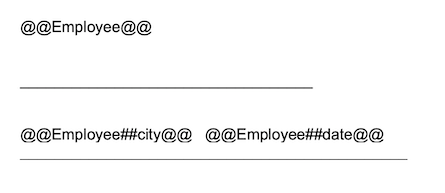
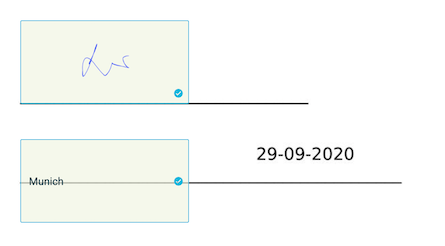
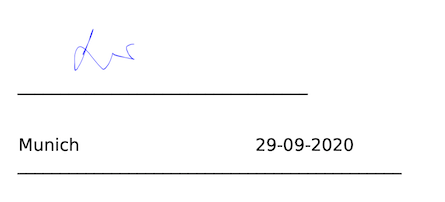
The table below provides examples of what the placeholders for electronic signatures, location, and date look like at the various stages of the document creation and signing process.
| Document template view | Signing process view | PDF view |
 |
 |
 |
Use the placeholders
Create placeholders at the points in the document where you would like them to appear by following the examples shown below:
- Placeholder for the location: @@designation##city@@
Example: @@Mitarbeiter##city@@ - Placeholder for the date: @@designation##date@@
Example: @@Mitarbeiter##date@@
The ##city@@ and ##date@@ placeholders must be lowercase to work properly. When using location and date placeholders, you don't need to leave a certain amount of blank space in your document template as you would for signature placeholders. The designations for the location and date placeholders must be consistent with the designation for the signature placeholder to ensure that they are correctly correlated.
Fix placeholder errors
The automatic assigning of a document doesn't work properly, or the document may display incorrectly if the incorrect spelling is used for placeholders for signatures or for location and date.
This table shows examples of why placeholder errors may occur.
| Incorrect spelling | Correct spelling | Explanation |
| @@Designation##city##date@@ | @@Designation##city@@ @@Designation##date@@ | To display both location and date, you must create two placeholders. It isn't possible to combine ##city and ##date in one placeholder. |
| @@Designation##cities@@ | @@Designation##city@@ | ##cities isn't a valid addition for the placeholder. |
| @@Designation##@@ | @@Designation@@ or @@Designation##city@@ or @@Designation##date@@ |
The placeholder mustn't contain the hashtag characters ## without the addition of "city" or "date". |
| @@Führungskraft@@ | @@Fuehrungskraft@@ | Signature placeholders cannot contain umlauts (for example, ä, ö, ü). Use "ae", "oe", or "ue" instead. |
| @@Designation##City@@ | @@Designation##city@@ | The ##city@@ placeholder must be lowercase. |
| @@Designation##Date@@ | @@Designation##date@@ | The ##date@@ placeholder must be lowercase. |
| @@HR Business Partner@@ | @@HRbusinesspartner@@ | Signature placeholders cannot contain blank spaces. Remove all spaces from the designation. |
If the above errors don't apply to your situation, see our list of other common template errors.
Next steps
After you've created your document template, see how to upload the template to Personio.