This article explains how to use placeholders in document templates. The placeholders covered here apply to employee data only.
Personio also uses placeholders in recruiting.
Create a text template with placeholders
First, create a text document in MS Workplace (DOCX/DOTX) or OpenOffice (ODT/OTT). Edit and format the document as usual. When you use placeholders, place them inside two sets of curly brackets.
You can use three different types of placeholders:
- Predefined system placeholders, for system attributes
- Custom placeholders, for attributes you have created
- Free placeholders, that do not reference attributes
Predefined and custom placeholders are selected when the template is used to create a document, and automatically populate with the corresponding employee data. Free placeholders can be populated with free text.
Predefined system placeholders
Placeholders are linked to system attributes and must always be in English, regardless of the language the template uses.
For example: {{first_name}}
| Predefined placeholders | Employee attribute |
| first_name | First name (legal) |
| last_name | Last name |
| preferred_name | Name (preferred) |
| Email address | |
| position | Position |
| department | Department |
| team_id | Team |
| gender | Gender |
| status | Status |
| employment_type | Employment type |
| hire_date | Hire date |
| probation_period | Duration of the Probation Period |
| probation_period_custom | Probation period end |
| contract_end_date | Contract end date |
| termination_type | Termination type |
| termination_reason | Termination reason |
| termination_date | Termination date |
| last_working_day | Last working day |
| document_date | Document's creation date |
| full_time_weekly_working_hours | Weekly hours |
| children | Children |
| supervisor | Supervisor's full name |
| supervisor_position | Supervisor's position |
| office_id | Workplace |
| subcompany | Legal entity |
| fix_salary | Effective salary |
| hourly_salary | Hourly wages |
| fte | Full-Time Equivalent |
| last_login | Last login |
| cost_centers | Cost center |
| date_of_birth | Date of birth |
You can find detailed information on the use of gender variables and date formatting in the linked articles.
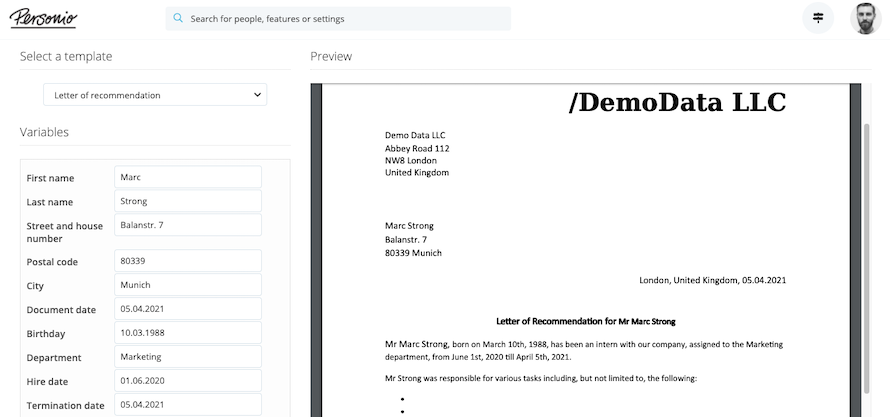
In Personio, the placeholders are displayed as follows under Employee Profile > Documents:
Custom placeholders
These placeholders are linked to attributes that you create freely in Personio, and they must be named in the same language as your Personio account.
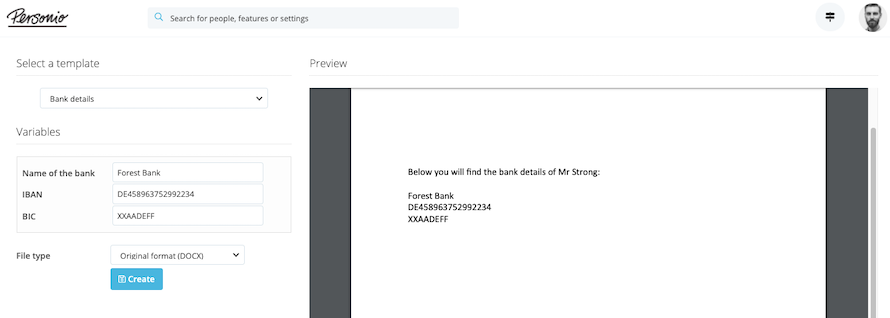
Make sure to use the exact name that you used for the attributes. For example: {{Name Bank}} {{IBAN}} {{BIC}}
In the Personio document management, this would look as follows:
Note:
The system cannot process the ampersand ("&") symbol. If used, the placeholder will appear empty.
Free placeholders
These placeholders are not linked to attributes and therefore have no naming requirements. You will have to manually fill in these placeholders with text.
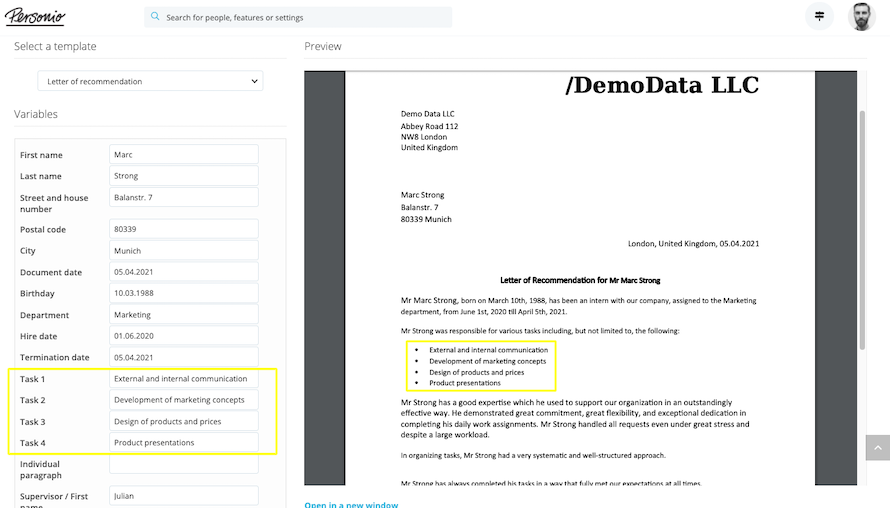
For example: {{Task 1}}
List a fixed number of points
In a Word document, you could, for example, use the following individual text blocks to list a fixed number of points, like tasks or benefits (best practice templates):
||His|Her|| tasks included the following:
{{Task 1}}
{{Task 2}}
{{Task 3}}
In the Personio document management, this would look as follows:
Benefits included:
[[Benefits
[One Benefit:
{{Benefit 1}}]

[Two Benefits:
{{Benefit 1}}
{{Benefit 2}}]

[Three Benefits:
{{Benefit 1}}
{{Benefit 2}}
{{Benefit 3}}]
]]
List an optional number of points
You can also create a flexible number of tasks. This is useful if, for example, you want to enter the tasks individually without being committed to a certain number. Use the following formatting for this:
|| His|Her|| area of responsibilities included the following tasks:
[[Tasks
[One task:
• {{Task 1}}]
[Two tasks:
• {{Task 1}}
• {{Task 2}}]
[Three tasks:
• {{Task 1}}
• {{Task 2}}
• {{Task 3}}]
[Four tasks:
• {{Task 1}}
• {{Task 2}}
• {{Task 3}}
•{{Task 4}}]
]]
In the Documents tab of the employee profile, select the required number of tasks under Options, and then fill out the corresponding free placeholders. The number of placeholders in the document will correspond to the number you selected.
Common template errors
Common reasons for errors when uploading a template include:
File format is not supported
- Ensure the file has been saved in a supported format: DOCX/DOTX, or ODT/OTT.
Incorrect placeholders
- If you do not include the correct amount of special characters for placeholders, you might receive an error message that references an odd number of variable delimiters.
- Check that each placeholder starts and ends with two brackets: {{ }}, [[ ]].
- Use the correct type of brackets (curly or square) based on the placeholder.
- Ensure that pre-defined or custom attributes used in placeholders are spelled correctly.
- Check for consistent spelling and capitalization across all signature placeholders in the document. For example, @@signer@@ is not the same as @@Signer@@.
- If the placeholder starts with, or only contains a number, the template will not work.
Invalid signature placeholders
- If you see an error message about invalid signature placeholders when uploading a document template:
- Make sure signature placeholders in the document do not include special characters like: "", ;, `, ', ä, ö, ü, …, or •.
- Document template uploads will fail if a placeholder contains any of these characters.
Additional elements causing errors
- Headers, footers, images, or tables included in the file might cause errors. Remove them one by one and try uploading again.
Incompatible characters
- If you notice errors while previewing a document, check for incompatible characters.
- If there is a multi-line text field that autofills with info from an employee profile containing characters such as "", ;, `, ', ä, ö, ü, …, or •, you must download the template, remove the fields, and upload the template again.