In this article, you will learn which steps are necessary to import the master data and DATEV mandatory attributes of your employees into Personio.
In order for you to be able to use the DATEV integration and for the monthly data synchronization between Personio and DATEV to take place, you must enter the master data andDATEV Attributesof your employees in Personio import. Here you have two options:
- Export master data from DATEV and import it into Personio
Compile employee data yourself and import it into Personio
Prerequisite for the first DATEV import
After you have decided on either the DATEV-LODAS or Payroll integration, our Customer Operations teams will unlock the integration for you and add additional salary attributes to your account. These newly created salary attributes must be filled, as some of them are Required attributes .
You can fill out an import template or, if you are already using DATEV, create and convert a master data export from DATEV (DALY-Export) and import this into Personio.
Option 1: Download data from DATEV
If your peoples responsible for payroll accounting have already made statements with DATEVComfort Package, ask them to provide you with a master data export (gen. DALY export). You can forward the instructions available here in the DATEV Help Center . The master data export contains employee data that is relevant to Personio and can be converted so that you can use the data as a basis for importing HR master data. You can then edit the master data export and import it into Personio.
Adding data to the master data export and importing it into Personio
To add data to the master data export and import it into Personio, follow these steps:
Preparation
Please note:
▶ Before you start importing your employee data, make sure that the import file is complete and correct. This ensures that there are no unwanted jumps in the history of your employees and that you start with clean data. This is relevant for the later creation of reports.
▶ Note that your account language is in thePersonal settingsmust be hired in German in order for the import to be carried out successfully.
As the master data export does not contain all of the attributes that are necessary for Personio and the DATEV integration, you will have to copy the data from the master data export and paste it into the DATEV-DALY-Transformation file.
- Download DATEV-DALY-Transformation (German only) here in the Helpcenter.
- Copy all values from the master data export and paste them into the Personio import file starting with the red flag.
-
Be sure to fill in all the attributes in the file that are shown in yellow.
Tip:
Read more about the Personio mandatory attributes in the sectionAdditional information for the import. - Save your import template.
Import to Personio upload
- Go to the Settings > Organization > Imports.
- Select Import of employee data and click Select File.
- Drag the file to the gray box or click the plus sign to select the file.
- In the window that appears, click Select a table and select the appropriate spreadsheet where your import is located.
- Check in the step Fill in the header select the selected header, and then click Further.
Map attributes and option values
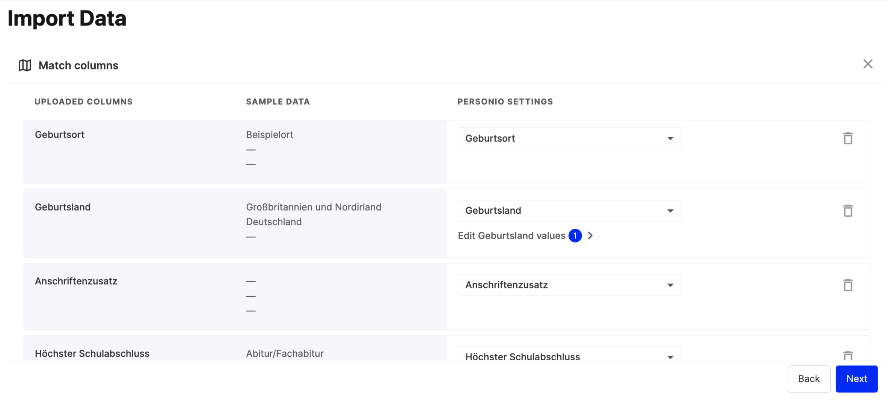
About Matching columns, you can assign the attributes and option values from the master data export to Personio directly to the correct format.
Please note:
▶︎ Some attributes from DATEV and Personio differ. Read in the section What must be considered when assigning the attributes, which is especially important for step 1 so that you can perform the mapping correctly.
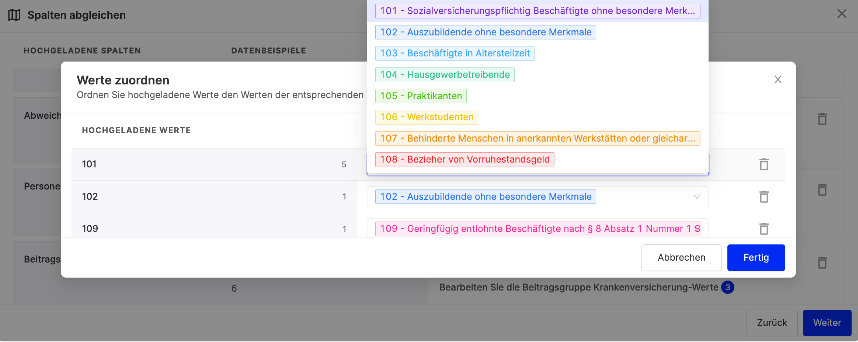
▶︎ If you are occasionally shown notes marked in blue, you must call up the values individually and assign them manually for the correct data comparison. This is particularly important in step 2, when you adjust the option values.
Proceed as follows:
- Assign the attributes from the master data export to the corresponding Personio attributes. You can do this directly from the drop-down menu in the Personio Settings .
-
For all attributes that show hints, click Edit and adjust the option values using the drop-down menu.
Tip:
▶ The option values of the person group keys and the contribution group keys must be correctly assigned to the Personio attributes. Use the key that is displayed in both the master data export and Personio as a guide.
▶︎ If you use DATEV Lohn und Salary, the values for nationality are marked as adjectives. Therefore, order the values for German to Germany.Example:
For example, make sure that the 101 - Person group key the value 101 - Employees subject to social security contributionsin Personio. - Click Done.
- The final review of the data happens under the Personio Settings tab. Here you can make final adjustments if necessary.
- Then click Next.
Complete import
If no further notes are displayed, click on Import.
What do you need to take into account when assigning the attributes?
Some attributes from DATEV and Personio differ. Make sure to use them via Matching columns to the correct values. See below which attributes differ from each other:
DATEV LODAS
| Uploaded columns (from DATEV) | Personio Settings (in Personio) |
| Address Country | Address, country |
| End of employment | Exit date (current employment period) |
| Severely disabled | Disability status |
DATEV Lohn und Gehalt
| Uploaded columns (from DATEV) | Personio Settings (in Personio) |
| End of employment | Exit date (current employment period) |
Option 2: Employee data directly in Personio import
To add employees to Personio via an import, you need to start with an import template. You will find this in the navigation bar under Imports in the Download template section. Depending on whether you have booked the integration with LODAS or Payroll, download the corresponding template. In the import template, you will find all relevant employee attributes as well as all necessary salary attributes that you need for successful use with DATEV.
Please note:
▶︎ Note that you can only import 60 attributes at a time. If you want to carry out further Imports, we recommend that you first import all relevant attributes that you will find in our import template.
▶︎ If you have created attributes in Personio yourself, you can add and import further columns in another import.
- First, download the Excel template, depending on the integration type.
- Then fill out the columns with your employee data. Each line represents one employee, and employees are identified by their email addresses.
- Save the complete Excel file.
To add the import:
- Upload file: Click on Imports and select the file typeEmployees.
- Configuring columns: Assign the columns of the Excel file to the attributes stored in Personio.
- Import preview: Check the import in the preview. If you notice any errors, you can simply cancel the import and fix the relevant problems in the Excel spreadsheet.
For more details on importing employee data, seeour article on the topic. Read our article on the Data Import Troubleshooting and learn why the import doesn't work.
Best practices for imports
Before filling out your import template, keep in mind the following best practices:
- Email addresses are defined by the system as a unique identifier. An email address must therefore be entered for all employees – and it is particularly important for later imports as well. If import files contain the email address and another identification feature (e.g. the Personalnummer), Personio uses, by default, the email address to import the data. We do not recommend importing multiple identifiers at the same time.
- Predefined attributes are system attributes that cannot be renamed or deleted because they are linked to other processes in Personio.
Tip:
You can hide some of the predefined attributes for your employees. To do so, create new sections and move the attributes into them. Newly created sections are not visible to employees unless you give them Permissions on it.
- Two employees cannot be recorded as their mutual superiors. If an employee people (such as a CEO) doesn't have a supervisor, you can leave this column blank.