Need help with Personio? The Support page is your starting point. Use Support AI to get instant answers, and if you need more help or want to speak with our team, just ask Support AI to connect you with someone at any time.
All users can ask Support AI questions. Only Account Owners, Contract Owners, and Payroll Owners can contact our Support team for help.
You can choose how you want to contact us:
- Schedule a call back at a time that suits you.
- Message our team to get help from the right specialist.
- Chat with us for real-time support during business hours.
We provide estimated response times so you know when to expect a reply. You can track your support requests and message us directly in Personio. You can also share feedback, explore the Help Center, connect with peers in the Voyager Community, and access courses in Voyager Academy.
For more information about how support works, see our frequently asked questions.
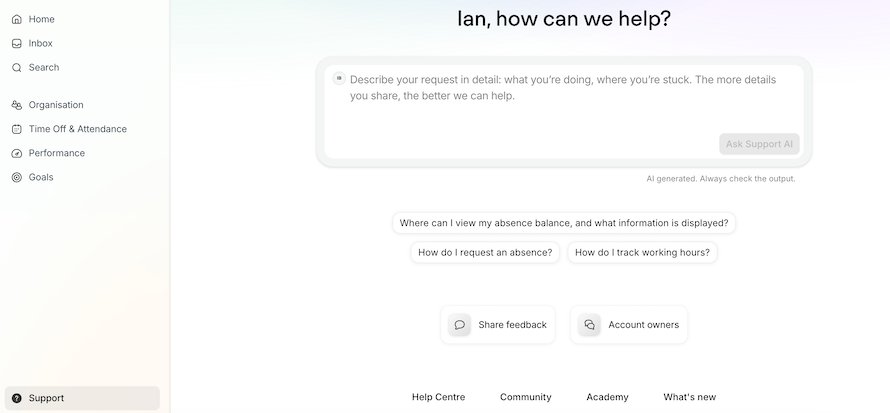
Access the Support page
Click Support in the navigation bar to open the Support page.
Note:
If you cannot log in to your account and cannot access the Support page, try troubleshooting common login issues. If you still need help with login issues, use our Help Center form. Use this form only for login access issues, not for product questions. Always use the Support page for product questions.
Ask Support AI your questions
Ask Support AI your questions using the chat box at the top of the Support page. Describe your question in detail for the best results. All users can access this feature to troubleshoot issues and get help with Personio. For data-driven insights about your organization, use Personio Assistant instead.
Get help from the Personio team
- Account Owners can contact Support for product questions.
- Contract Owners can contact Support for subscription or contract questions.
- Payroll Owners can contact Support for Personio Payroll questions.
- Administrators: Personio is rolling out support access to all Administrators by default in phases. Not all Administrators can contact Support yet — if you have access, you received an email confirmation and can see a prompt when you visit the Support page.
When you contact Support, we route your request to the appropriate team based on your question type. Payroll questions go to the Payroll Operations team, and subscription or contract questions go to your Account Manager.
Tip:
If you’re not an Account Owner, Contract Owner, or Payroll Owner, click Account owners in the Support page to see who can help in your organization. You can also get peer support from experienced users in the Voyager Community.
Contact our teams
You can ask Support AI to connect you with an agent at any time during your conversation. Personio includes your conversation with Support AI in your request.
Tip:
Premium Support customers can click Contact us to go straight to their contact options.
Follow these steps to contact our teams through Support AI:
- Click Support in the navigation bar.
- Describe your issue to Support AI.
- If Support AI cannot answer your question, ask Support AI to connect you with someone from our team.
- Click Contact us when Support AI displays the option.
- Choose the topic you want to get help with.
- Choose your contact option:
- Request a call back to schedule a call.
- Send us a message to submit a support request. Our team responds in Personio and by email.
- Chat with us to start a real-time chat with someone from our Support team. Live chat is available to Premium Support customers only.
- Review the AI-generated summary of your issue. You can edit the details if you need to.
- Submit your request.
Schedule a call back
Personio doesn’t have a phone number you can call for support. Instead, you can choose a time for our team to call you back. Premium Support customers can request an immediate callback within the next 10 minutes.
To schedule a call back:
- Select your topic and click Request a callback.
- Review and confirm the AI-generated summary of your issue. You can edit the details if you need to.
- Select an available time slot that suits you. Premium Support customers can select Call me now for immediate help within 10 minutes.
- Enter the phone number Personio should call you on.
- Confirm your request with or without call recording.
After you submit your request, a confirmation screen appears. You can reschedule from this screen. Once you leave this screen, rescheduling isn't available. You also get an email confirmation with your callback details.
Chat with us
Live chat lets you message a support specialist in real time. Live chat is available to customers on Premium Support plans only, Monday to Friday, 09:00–18:00 CET, in English and German. Some topics aren't available through live chat due to their complexity, including Data Protection & Security, Subscription Plan, and Billing & Payment Details. For these topics, the Chat with us option isn’t available. To get help with these topics, request a callback or send us a message instead. If live chat is outside business hours, you can see when it's available again. If no agents are available, Personio prompts you to use a callback or message instead.
To start a live chat:
- Select your topic and click Chat with us.
- Fill in your issue details and submit to enter the queue. You can see your estimated wait time.
During your chat:
- Type in the message box to chat with a support specialist.
- If there's a delay before an agent joins, you receive a Personio Inbox notification when they do.
- If your issue needs more investigation, for example, a bug that requires time to resolve, the chat can transition to a support ticket.
- You can end the chat at any time by selecting End chat. If you end your chat, you lose your place in the queue. You can then choose a different contact option, such as a callback or message.
Note:
You can only have one active live chat at a time. To open a new chat, you need to resolve or end your current one first. You can still use callback or message while a live chat is open.
View your Support History
To view your Support History, click Support history.
- Everyone sees their Support AI conversations in Support History.
- Everyone sees their own live chats in Support History. Live chats aren't visible to other users.
- Administrators can also see support tickets created by other users. Learn more about role-based visibility.
- Users you add to a support request also see those requests in Support History.
Support AI conversations
Your Support History shows your Support AI conversations. Use the AI conversations tab to find them. Your Support AI conversations stay saved even after you close Personio. You can return to a conversation anytime and continue it by sending more messages. Support AI closes conversations after a period of inactivity.
Support requests
When you send a message, it creates a support request. In Personio, support request and support ticket refer to the same thing. You can view your support requests in your Support History. Click the Support tickets tab to see them. Track the status of your requests and send messages in Personio or by email. Both methods update the same request, and your email replies appear in Personio.
Sending a message using this method is asynchronous — it isn't live chat, and you receive a notification when our team responds. For real-time support, use Chat with us instead.
Note:
Your Support History shows only requests and conversations you created after 16 February 2026, when Support History became available in your account. Items created before this date don't appear in your Support History, but our team can still access all your historical requests.
Open and respond to your support requests
You can open support requests from the Support page or by clicking an Inbox notification.
To open and respond from the Support page:
- On the Support page, click Support history.
- Click the Support tickets tab.
- Click a request to open it.
- Type your response in the message box. You can attach files to your message.
When you view your support requests history, you see a list of your requests showing the ticket number, who submitted it, creation date, and status. You can filter and sort your requests by status, ticket number, created date, or who submitted them. When you open a request, you see the message thread and ticket details.
Share your support requests with other users
You can add users to an open support request so they can follow the conversation and respond. Use the Share with others option to add someone when you create a request, or open an existing request from your Support History to add them later.
Users you add can:
- View the full message thread for that request.
- Respond to the request in Personio.
- Receive notifications when there's a new reply.
Note:
Only the person who created the request can add or remove someone. Users you add can only see the requests they've been added to, not all company requests. If you remove someone, they can no longer see the request in Personio.
Support request statuses
Your support requests can have these statuses:
- New: We received your request.
- In Progress: We’re working on your request.
- Waiting on your reply: We're waiting for your response.
- Resolved: We closed your request. Resolved requests appear in your Support History.
Live chats
Click the Live chats tab to find your live chat conversations. Each entry shows the status, support ticket ID, who submitted it, and the date it was created. If your live chat transitions to a support ticket, it also appears in the Support tickets tab.
Get notified about support responses and live chats
Personio notifies you when our team responds to your request or sends a message in your live chat.
- Inbox notification: a notification appears in your Personio Inbox. Click it to open the request or chat. If our team sends multiple responses to the same request, the notification updates and becomes unread again. Personio doesn't create duplicate notifications.
- Email notification: you receive an email when our team responds to your request. For live chats, you receive an email notification only if your chat changes into a support ticket.
Reopen a resolved request
When we resolve your request, you receive a notification in your Inbox. In most cases, we fully resolve your issue. If you need to follow up, reply to the email within 10 days of it being closed to reopen the request.
If your live chat converted to a support ticket, you can reopen it the same way — reply to the email within 10 days. If we resolved your live chat without converting it to a support ticket, you cannot reopen it. To continue getting help, start a new chat.
Share feedback
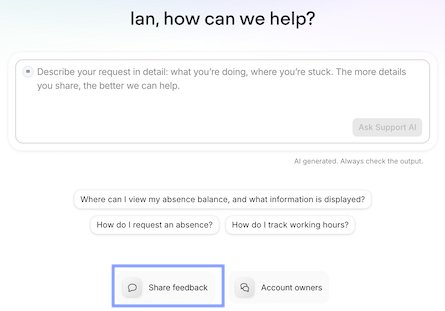
Submit product improvement ideas using the Share feedback feature on the Support page. The image below shows where to find the Share feedback button on the Support page.
Note:
Use this feature for product ideas only, not support requests. We forward feedback to our product teams, but we don't provide individual responses. For support questions, use Support AI instead.
To submit feedback:
- Click Support in the navigation bar.
- On the Support page, click Share feedback.
- Describe the feature you want to give feedback about in the form.
- Submit your feedback.
A confirmation message appears after you submit. Our Product team reviews all feedback and uses it to prioritize improvements and new features.
Explore more resources
Use the links at the bottom of the page to access:
- Help Center: Browse Help Center articles to find answers.
- Community: Peer support from experienced Personio users in the Voyager Community.
- Academy: Courses and learning materials in Voyager Academy.
-
What's new: Recent feature releases in Personio.