Employee ratings are a standardized measure of employee performance and potential. You can set up:
- Performance ratings: measure an employee's current performance.
- Potential ratings: measure an employee's future potential.
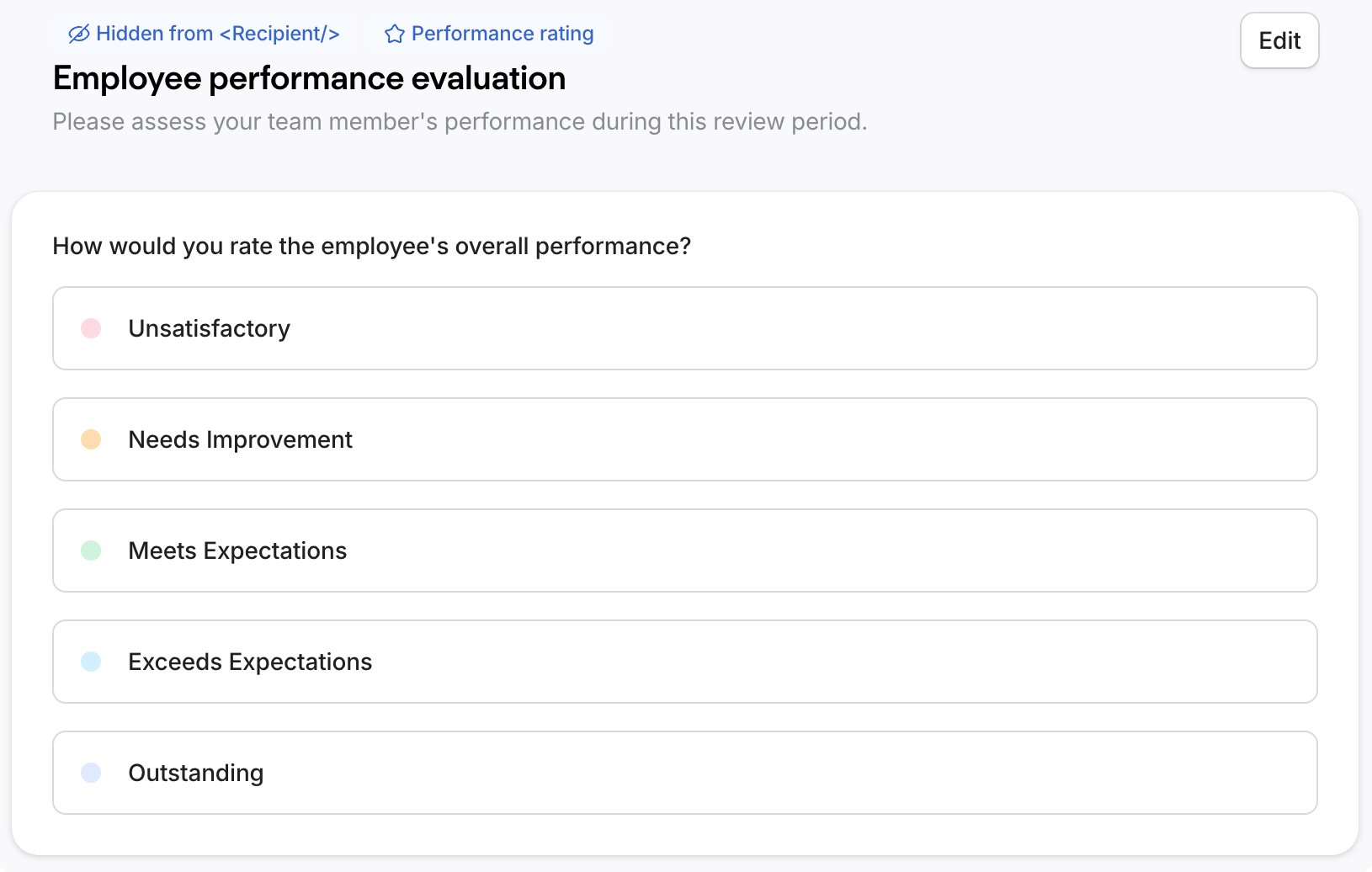
To collect each of these ratings, you can configure a standard numeric or descriptive scale question. For example, "How would you rate the employee's performance?"
You can then add these questions to a dedicated section in manager reviews. This way, supervisors can rate their direct reports.
The Metrics tab displays the collected data. This provides a summary of performance and potential ratings for all employees in the review cycle.
Benefits
Employee ratings help you:
- Rely on a measure of employee performance to decide on promotions and compensation.
- Identify high-potential employees, such as candidates for leadership roles. This helps you prioritize development investments.
- Analyze performance to get insights more easily.
Before you start
- To create employee ratings, you need to have the Administrator role or edit access for Performance settings.
- Personio collects both performance and potential ratings within the same Manager Review, using the same reviewer. It's not possible to assign a different reviewer to the potential rating than to the performance rating within a single review cycle.
Set up performance ratings
To create employee performance ratings, follow these steps:
- Go to Performance > Manage > Ratings.
- Next to Employee performance evaluation, click Edit.
- Optional: Activate rating colors to make ratings easier to see at a glance.
- Enter title and description for the performance rating section. Select the type of scale question (numeric or descriptive) and configure it.
- Choose to mark the question as required, open to comments, or private. Private questions aren't visible to the feedback receiver unless they have edit permissions for their own cycles and reviews.
- Click Save changes.
You can enable the performance rating question when creating a performance review cycle. Once you enable the question, it appears as part of the cycle's manager reviews. If a live cycle uses these ratings, you cannot edit them. Close the cycle first, then make your changes.
Set up potential ratings
To create potential ratings, follow these steps:
- Go to Performance > Manage > Ratings.
- Next to Potential evaluation, click Edit.
- Enter title and description for the potential rating section. Select the type of scale question (numeric or descriptive) and configure it.
- Choose to mark the question as required, open to comments, or private. Private questions aren't visible to the feedback receiver unless they have edit permissions for their own cycles and reviews.
- Click Save changes.
You can enable the potential rating question when creating a performance review cycle. Once you enable the question, it appears as part of the cycle's manager reviews. If a live cycle uses these ratings, you cannot edit them. Close the cycle first, then make your changes.
View employee ratings
During a performance review cycle, you see an overview of the ratings that supervisors give to their reports:
- In the cycle details page, under Performance ratings: You see the ratings of each employee whose manager submitted the manager review. You can also filter employees by ratings.
- Under the Metrics tab: If both performance and potential ratings are active, performance ratings appear on the x-axis and potential ratings appear on the y-axis. This gives you a visual representation of the employee ratings in the cycle.
- In manager reviews (if submitted and shared). Employee ratings also form part of review and cycle exports.
Employee ratings also help you track employee performance between cycles. The latest ratings appear:
- In the side panel when you write a manager review, to help you gather context.
- In an employee's performance profile.
- Under Performance > Team Performance, giving you useful insights about the team.
Next steps
Learn about managing employee ratings.