This article explains the permissions in the Time off and Team Calendar permission groups and what each one controls. Use it as a reference when you set up or manage roles and permissions in your account.
Time off and team calendar permissions depend on one another, and users often need a combination of permissions from both groups to complete tasks.
The permissions described in this article are part of Personio's broader role-based permissions system. For a full overview of all permissions, see the dedicated summary article and the article about setting up permissions and employee roles.
Time off
This permission group controls access to time off data and management features in Personio.
[Time off type] - All details
Each time off type in your account, like "Paid vacation," has its own permission. These permissions control:
- Access to the Time off tab in the employee profile.
- Who can view, request, or edit time off periods of that type.
- Whether time off periods of that type appear in the Team calendar.
The table below explains what each access level lets users do with this permission.
| Level | What the user can do |
|---|---|
| View |
|
| Propose |
|
| Edit |
Even with Edit permission, employees can't update time off policies. They need Edit permission for Time off/Balance history. |
Dependencies:
- Users need access to at least one time off type to see the Time off tab in the Employee profile.
- Employees must have a time off policy assigned to see or request time off. If a type is missing from someone's view, check both their permissions and policy assignments.
- To let someone view a time off type without being able to request it, grant them View permission for Self. To hide a time off type entirely, clear all permission options.
Time off / Balance history
This permission controls access to the accrual history and balances for an employee’s time off.
The table below explains what users can do depending on the access level assigned.
| Level | What the user can do |
|---|---|
| View | See the time off accrual history and balance log in the Time off tab of an employee profile. |
| Edit |
Manually adjust balances and switch or unassign a time off policy for one employee at a time in the Time off tab of their profile. This controls single-employee adjustments only. For bulk changes, use the Time off settings permission instead. See Adjust time off balances. |
Dependencies:
- To adjust a balance, the role also needs View permissions for [Time off type] - All details for that specific time off type. Without this permission, the time off type doesn't appear in the employee profile.
Import - Time off balance
This permission controls who can bulk import time off balance adjustments for multiple employees at once.
To import a time off balance, the role also needs:
- View permission for the relevant [Time off type] - All details and scope.
- Edit permission for Time off / Balance history for the relevant scope.
Imports can't be undone. Only grant these permissions to trusted users who understand the process and be sure to test your import with a small file first.
Import - Time off periods
This permission controls who can import time off periods in bulk to create past, current, or planned periods for multiple employees at once.
To import time off periods, the role also needs:
- Edit permission for [Time off type] - All details for the target scope of employees and each time off type being imported.
Import - Time off policy assignments
This permission controls who can assign policies to multiple employees at once, which helps when onboarding a group or when changing a team's policy.
To import time off policy assignments, the role also needs:
- View permission for the relevant [Time off type] - All details.
- Edit permission for Time off / Balance history.
See Import time off policy assignments.
Team calendar settings
This permission controls who can manage the time off types (like vacation or sick leave) that appear as greyed-out blocks in the Team calendar. They can select the time off types that appear in the calendar under Settings > Team calendar.
Time off settings
This permission controls who can create and manage time off types and policies for the organization under Settings > Time off & attendance > Time off.
This is the broadest permission in the Time off permission group. When you grant this permission, users can also perform bulk balance adjustments. Only grant this to roles that manage the full time off setup. See Create time off types and Manage time off policies.
Team Calendar
This permission group controls access to calendar data in Personio. You can use these permissions to balance employee privacy with calendar visibility. It helps to control who can see time off, birthdays, and work anniversaries, and how much detail they can view.
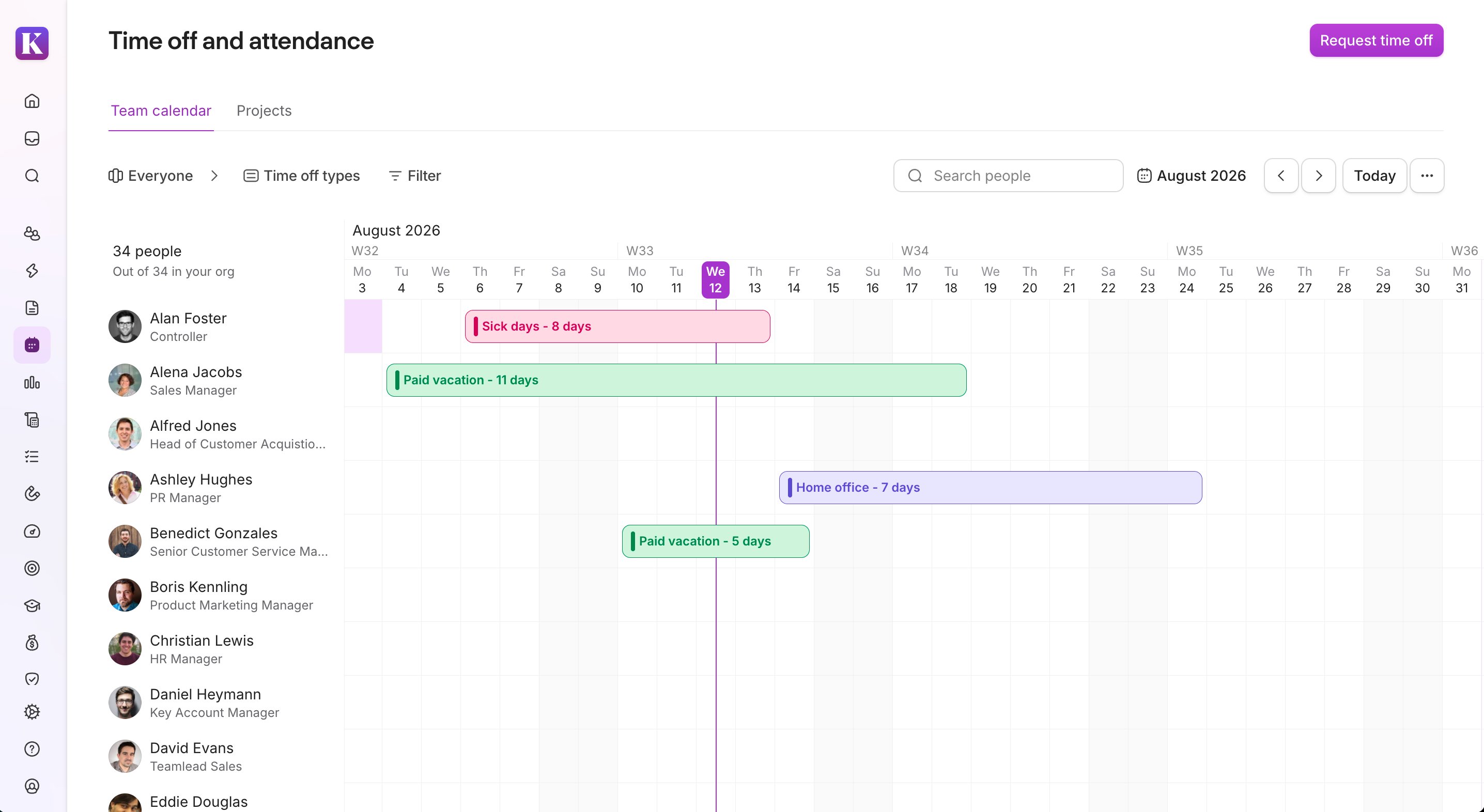
What a user sees in the Team calendar depends on their permissions. The Team calendar can display time off for employees in two ways:
- In color view: users can see when an employee has taken time off and the time off type used. The time off type appears in its assigned color.
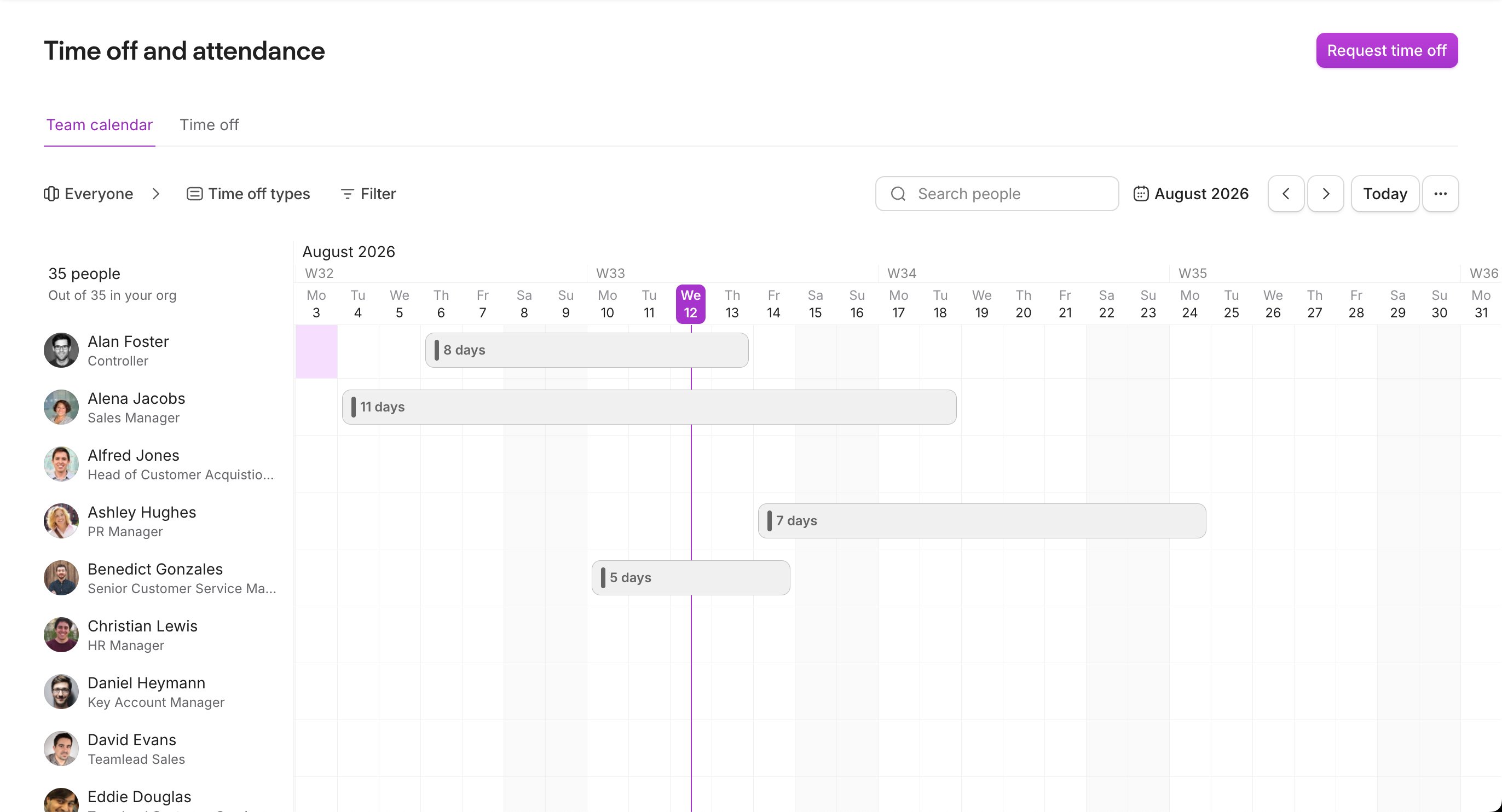
- Greyed-out view: users can see when an employee has taken time off but can’t see the time off type used or its assigned color.
[Time off type] - Calendar
Grant this permission for each time off type (like paid vacation) you want employees to see in the Team calendar for the selected scope of employees, including the time off type name and color.
The table below explains what users can see in the Team calendar depending on the access scope assigned.
| Scope | What the user sees |
|---|---|
| Self | Only their own time off periods for this type. The time off period appears with its name and color. |
| Reporting line | The time off periods for this type for their direct and indirect reports. The time off period appears with its name and color. |
| Custom | The time off periods for this type for a specific, filtered group of employees. The time off period appears with its name and color. |
| All | The time off periods for this type for all employees, except themselves. The time off period appears with its name and color. |
Dependencies:
- If a role has View permission for [Time off type] - All details, Personio automatically shows that time off type in the Team calendar in color, overriding this setting.
- Users need View permission for the sections of the employee profile containing the Preferred name and Status attributes to see them.
Out of office periods
This permission controls whether users can see when other employees are away in the Team calendar.
When you grant this permission, users can see the periods that employees within the defined scope are out of office. The periods appear as greyed-out blocks in the Team calendar to show when someone is away but don’t show the time off type. Use this if you want employees to see that their colleagues are away but not show the specific reason.
Only the time off types enabled in Settings > Team calendar appear as grey blocks in the Team calendar.
The table below explains what users can see in the Team calendar depending on the scope assigned.
| Scope | What the user sees |
|---|---|
| Self | Only their own time off periods as grey blocks. |
| Reporting line | Time off periods for their direct or indirect reports as grey blocks. The time off type does not appear. |
| Custom | Time off periods for a specific, filtered group of employees as grey blocks. The time off type does not appear. |
| All | Time off periods for all employees, except themselves, as grey blocks. The time off type does not appear. |
Dependencies:
- Full color vs. greyed-out: If a user already has View permission for a specific [Time off type] - All details, that time off will appear in full color instead of greyed-out.
Birthday visibility
This permission controls visibility of employee birthdays. When granted, users can subscribe to the iCal calendar export for employee birthdays. To see their colleagues' birthdays in the dashboard, users also need View permission for the profile section that contains the Date of birth attribute.
Tip:
Under Settings > People > Personal information, open the Settings for the date of birth attribute. Here, you can choose to hide the year of birth to ensure the age is not displayed on profiles for users with only View permissions.
Start/end dates visibility
This permission controls the visibility of employee start and end dates. When granted, users can subscribe to the iCal calendar export for start and end dates of employees. To see their colleagues' work anniversaries in the dashboard, users also need View permission for the profile section that contains the Hire date attribute.
Recruiting calendar events
This permission controls access to recruiting events in the user's calendar, like scheduled interviews.
Permissions for common tasks
The table below provides an overview of the permissions you need to perform common actions or access certain features in the tool.
Common tasks
| Task | Permissions needed |
|---|---|
| See a time off type in a profile |
|
| Request a time off type or edit existing periods |
|
| Approve team time off requests |
|
| See comments on a time off request |
|
| Open a time off certificate attached to a request |
|
| See greyed-out time off in the Team calendar |
|
| See a time off type in color in the Team calendar |
|
| See a pending time off period in the Team calendar or in the Time off tab of an employee’s profile |
|
| See the accrual/balance history in the Activity tab |
|
| Adjust one employee's balance |
|
| Import time off periods |
|
| Import time off balances/adjust in bulk |
|
| Import time off policy assignments |
|
| Configuration access to Settings > Team calendar |
|
| Create or manage types and policies |
|