This article provides an introduction to the Org chart. The chart shows your company's hierarchy, reporting chains, and employee relationships. You can view your organization by individual employees, departments, or teams. You can also see who leads each department and team.
Access the Org chart
To access the Org chart, go to Organization > Org chart in the main menu. The information you see in the Org chart depends on your permissions.
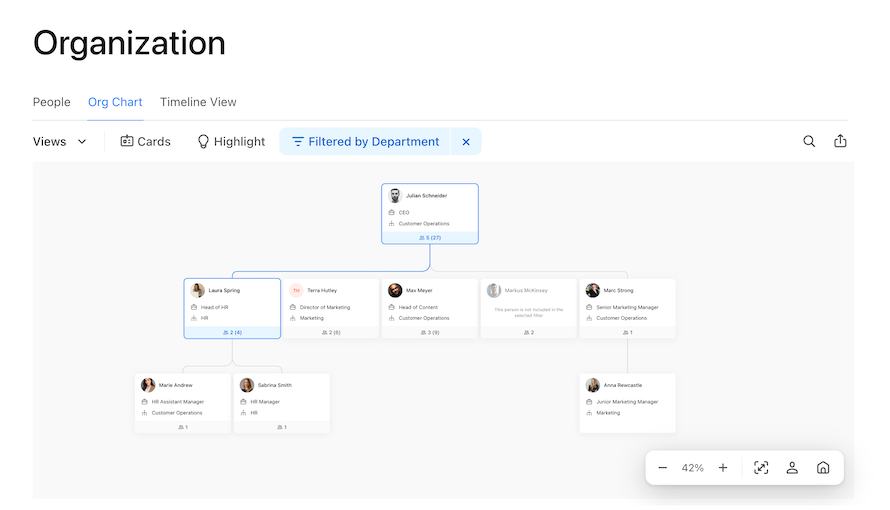
Chart layout
You can arrange the Org chart in three ways. This helps you understand your organization's structure from different perspectives. The arrangement you choose also affects which views and filters are available.
Click Views and select Arrange by to change the chart arrangement. Choose from:
- People: shows individual employees and their reporting relationships. This is the default view.
- Departments: shows your primary organizational structure by departments and their hierarchy.
- Teams: shows your secondary organizational structure by teams, including their hierarchy (if set up).
Views and filters
You can customize what appears using views and filters. The available options depend on how you arrange the chart:
- Views define which groups appear in the chart. The available view options change based on how you arrange the chart.
- Filters narrow what appears in the chart. You can apply multiple filters at the same time.
Tip:
To display only employees with a specific status (for example, Active, Onboarding, or Leave), arrange the chart by People and use the Status filter.
Cards
Employee cards
Click an employee card that has reports to see their direct reports and reporting chain. Right-click an employee card to:
- Copy the email address.
- Copy the email addresses of all reports.
- Download an image of the card (in PNG format).
Placeholder cards
Placeholder cards appear when you have limited permissions. They keep reporting chains connected and prevent gaps in your chart.
You see placeholder cards when you can't see an employee's card but can see their direct and indirect reports. This might happen when a supervisor is on leave or inactive. It also happens when you don't have permission to view their profile. You can't hide placeholder cards.
Placeholder cards don't appear if you can't see an employee's card or any of their direct or indirect reports. You can typically only see people within your own legal entity.
Department and team cards
When you arrange the chart by Departments or Teams, each card displays:
- The department or team name.
- The number of direct members and total members in the department or team. Direct members belong to that specific department or team. Total members include everyone in the department or team and its sub-units.
- Up to three leads for the department or team. Leads show who is in charge of each unit. An employee can lead multiple departments or teams.
- The number of sub-units (if applicable).
Card customization
You can customize the information on cards and how they appear. The customization options depend on how you arrange the chart.
When you arrange by People:
- Use Open positions to see the open positions you've created in the Positions tab during the Workforce Planning journey.
- Use Card clustering to condense the displayed cards into a compact view.
- Use Personal info to show personal information on employee cards.
- Use Avatars to show profile pictures on employee cards.
- Add up to four attributes to each card, such as position, department, and workplace. Use the drag-and-drop icon to the left of the attribute name to rearrange their order.
- Floating cards appear at the top of the hierarchy. They represent employees without supervisors.
When you arrange by Departments or Teams:
- Choose to display Description, Code, or Total members on department or team cards.
- Choose to display Leads to show the assigned leads on department or team cards.
Highlight and spotlight
Use Highlight to view the distribution of a particular attribute across your organization. Each attribute is color-coded.
Use Spotlight to highlight one employee in the chart. This helps you see the employee's full reporting line. It includes their primary supervisors, direct reports, additional supervisors, and dotted-line reports.
Sharing and export
Click the share icon at the top right to access sharing features:
- Copy URL: copy the address of the Org chart view. The address stores the arrangement, view, and filter details. You can save this address in your browser favorites or send it to other employees with the same permissions.
- Export: export the Org chart view as a JPEG, PNG, SVG, or PDF. The export respects the filters you have applied. Clear all filters if you want to export the whole chart. The export ignores the zoom level and always displays the full image.
Controls and search
Click and drag with your cursor to explore the Org chart. Use the view controller at the bottom right to:
- Zoom in or out.
- Zoom to fit the screen.
- Jump to your employee card.
- Return to the home view.
Use the search bar in the top right to search for employees, departments, or teams:
- When you arrange by People, search for employees. Clicking the search result highlights the employee's card.
- When you arrange by Departments or Teams, search for an employee or the name of a department or team. Clicking the search result jumps to the department or team and shows a list of members.