Learn to use Personio’s Career Frameworks to organize jobs and expectations into a clear, accessible structure.
Career frameworks show:
- What competency each job needs.
- What’s expected at every job level (for example, "Junior", "Senior", "Lead").
- How employees can grow and move forward in their careers.
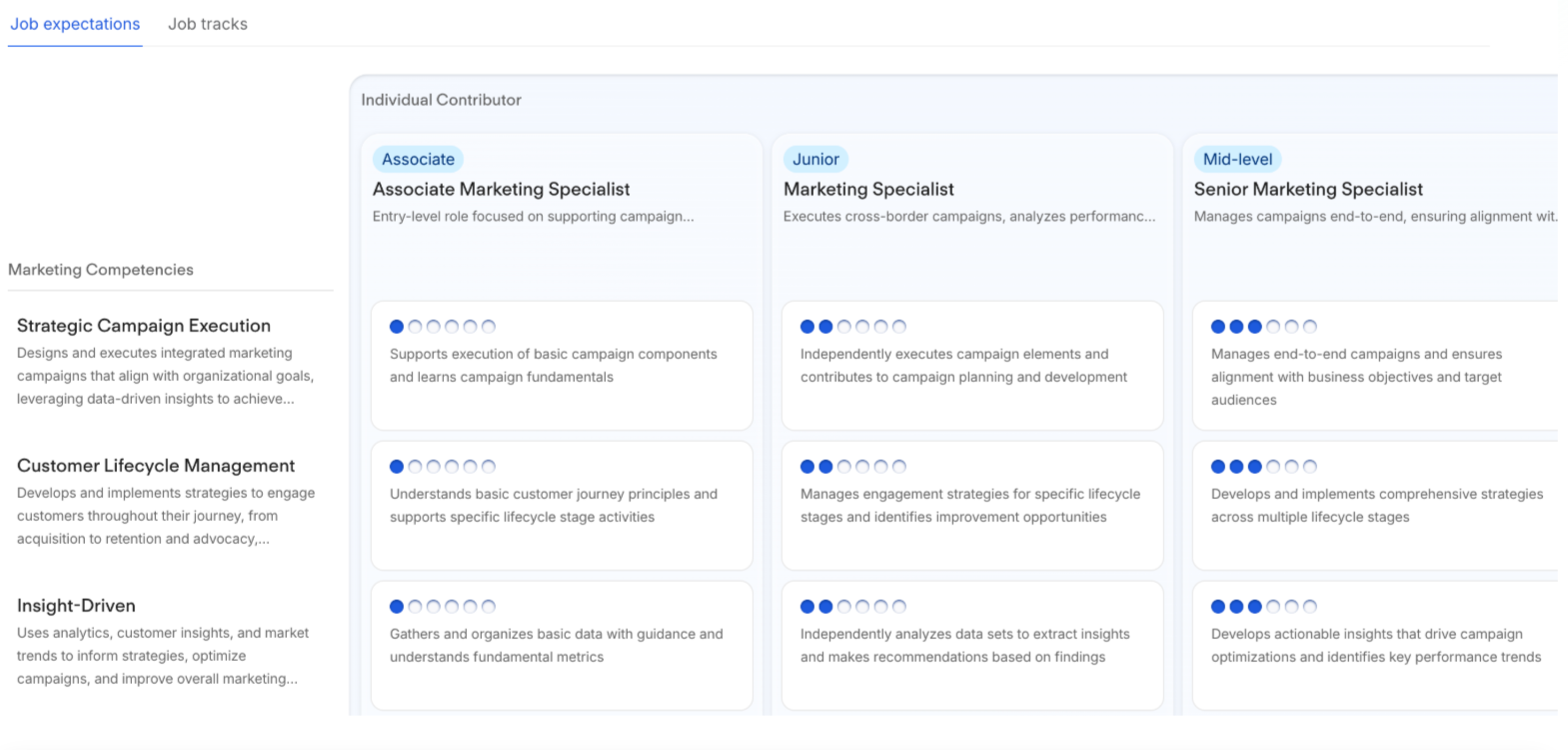
Once published, employees can see their career framework in their profile. They can browse expectations for their current and future roles. Supervisors can use the frameworks to provide actionable feedback and support development.
Career frameworks don't translate to other languages. All users see the language you create the framework in, regardless of their personal language settings. If you need frameworks in multiple languages, you need to create separate frameworks for each language.
Before you start
1. Check your access rights
To create and manage career frameworks, you need the Administrator role or edit permissions for career frameworks and competencies:
- Go to Settings.
- In the People section, click Roles & permissions.
- Select the relevant role.
- Click Permissions.
- Click Account configuration.
- Next to Career Frameworks, select All.
2. Set up your job architecture as the basis for career frameworks
Before defining competencies and expectations for the jobs in your organization, you need to map these jobs in Personio by creating a job architecture. For this, you need the Administrator role or edit permissions for Job architecture and catalog.
The job architecture defines:
- Job families: groups of jobs with similar characteristics. For example, "Sales", "Engineering".
- Job tracks: the different career paths. For example, "Individual contributor", "Management".
- Job levels: within each track, you can have jobs at different levels of seniority. For example, "Associate" and "Senior".
- Job names: the actual jobs belonging to the different levels, tracks, and families. For example, "Associate producer".
Learn to set up a job architecture in our dedicated article. Then create a career framework for each job family.
3. Activate the AI import functionality
You can import an existing framework into Personio with our AI import functionality. To activate the functionality, follow these steps:
- Go to Settings.
- In the Account & support section, click AI features.
- Enable the toggle next to AI features.
Learn about career frameworks visibility
See career frameworks
Regular employees can see their career framework (including job level, track, and family):
- In their own profile.
- Under Performance > Your Performance.
- When writing self, peer, upward reviews, or continuous feedback.
Supervisors can see the career framework of their direct reports:
- Under Performance > Team Performance.
- When writing a manager review.
Any employee can see a career framework if they have the link to it. This is regardless of job level, track, and family viewing permissions. These are under Permissions > People data > Jobs.
Tip:
If necessary, you can unpublish a career framework under Settings > Organization > Jobs and careers. Click the relevant framework and click Unpublish.
Make sure employees have access to career frameworks
An employee can see their career framework if the following conditions are true:
▶︎ You assign the employee a job within a defined job architecture. This includes a job family, level, and track.
▶︎ You create a career framework for the employee's job family.
▶︎ Employees have viewing permissions for the section that contains the Job name in the Personal Info tab:
- Go to Settings.
- In the People section, click Roles & permissions.
- Select the relevant role.
- Click Permissions.
- Under Personal data, grant viewing permissions for the employee profile section containing the Job name attribute. For example, “Payroll information”.
▶︎ You activate the widget in the About tab of the employee profile:
- Go to Settings.
- In the People section, click Personal information.
- Click the About tab.
- Click the toggle on the career frameworks widget to turn it on or off.
Set up a career framework
To set up your career framework, follow these steps:
- Go to Settings.
- In the Organization section, click Jobs & careers.
- Under Career frameworks, click Create new framework.
- Select the job family. Each job family can only have one career framework.
Option 1: Upload an existing framework
If you already have a framework, you can upload it to Personio via an AI-assisted upload functionality. Personio maps the content of the import file in a new framework.
- Click Browse files.
- Select the file where you stored your framework. You can upload CSV and TXT files.
- Click Next.
- The upload can take up to 3 minutes. For it to succeed, the file must be readable and contain only one framework.
- Click Save and keep editing to edit, add, or delete competencies. Note that the system does not map updates to existing competencies or jobs it cannot find.
- Alternatively, discard the upload to build the framework from scratch.
Option 2: Create the framework from scratch
- After selecting the job family, click Next.
- Click Add new competency . Click Create new competency.
- Enter the competency name, category and description. Note that categories are a way to group competencies. For example, "Leadership".
- Optional: choose to assign the competency to new frameworks by default. Do this for competencies that are relevant to the job family as a whole.
- Describe expectations for the first competency level, as each competency needs at least one proficiency level. If you set the competency as default, you can set default expectations to save time.
- Add up to ten competency levels, as needed.
- Save the competency.
- For each job, click Add competency expectation and select the required competency level.
Repeat the process, adding competencies and expectations for all jobs across career paths.
- Click Preview to see what the framework looks like once published.
- If necessary, keep editing. Otherwise click Publish.
Next steps
Learn to manage existing frameworks.