This article explains how to connect Cursor to the AI Transformation Hub. After you connect Cursor, Personio imports usage and cost data from it. You can then see how often your employees use Cursor and what your organization spends on it beyond its seats. Learn what you can use this data for.
The AI Transformation Hub is in beta, so connection options can change based on your feedback. To share feedback, go to AI Transformation and click Report feedback.
Before you start
Before you connect Cursor, refer to our general recommendations for connecting to an AI provider. These recommendations explain when Personio starts importing data, who can see individual usage, and why we recommend aligning with your works council.
Personio permissions
To connect Cursor to the AI Transformation Hub, you need either an Administrator role or Edit permissions for the AI transformation > AI integrations settings section.
Cursor settings
Make sure you have the following in place:
- A Cursor Teams plan. Enterprise organizations and several Cursor teams per company aren't supported yet.
- The Team Admin role in Cursor, or help from your Team Admin.
Keep in mind:
- Your Cursor seats affect what you see in the Spend tab:
- Usage covered by your seats has no individual cost, so it doesn't appear in the Spend tab.
- Usage that Cursor charges beyond your seats appears as an individual cost.
- Cursor is now part of The X Subscription, and its dashboard is at grok.com/dashboard. If your team hasn't moved to the new dashboard yet, you can find the same settings in the Cursor dashboard.
- Connect your Cursor team with one API key only. A second key for the same team creates a second connection, and its usage counts twice.
Start the connection in Personio
- Go to AI Transformation.
- Click Settings in the upper-right corner.
- Next to Cursor, click Connect.
Create an API key in Cursor
- Sign in to the Cursor dashboard as a Team Admin.
- Go to API keys and create a key.
- Select Team as the owner and select Cursor as the type.
- Select at least the View members, View member usage, and View spend permissions.
- Copy the API key.
Store the API key in your organization's password manager so you can use it again later.
Finish the connection in Personio
- Go to AI Transformation.
- Paste the API key into the Cursor settings.
- Click Connect.
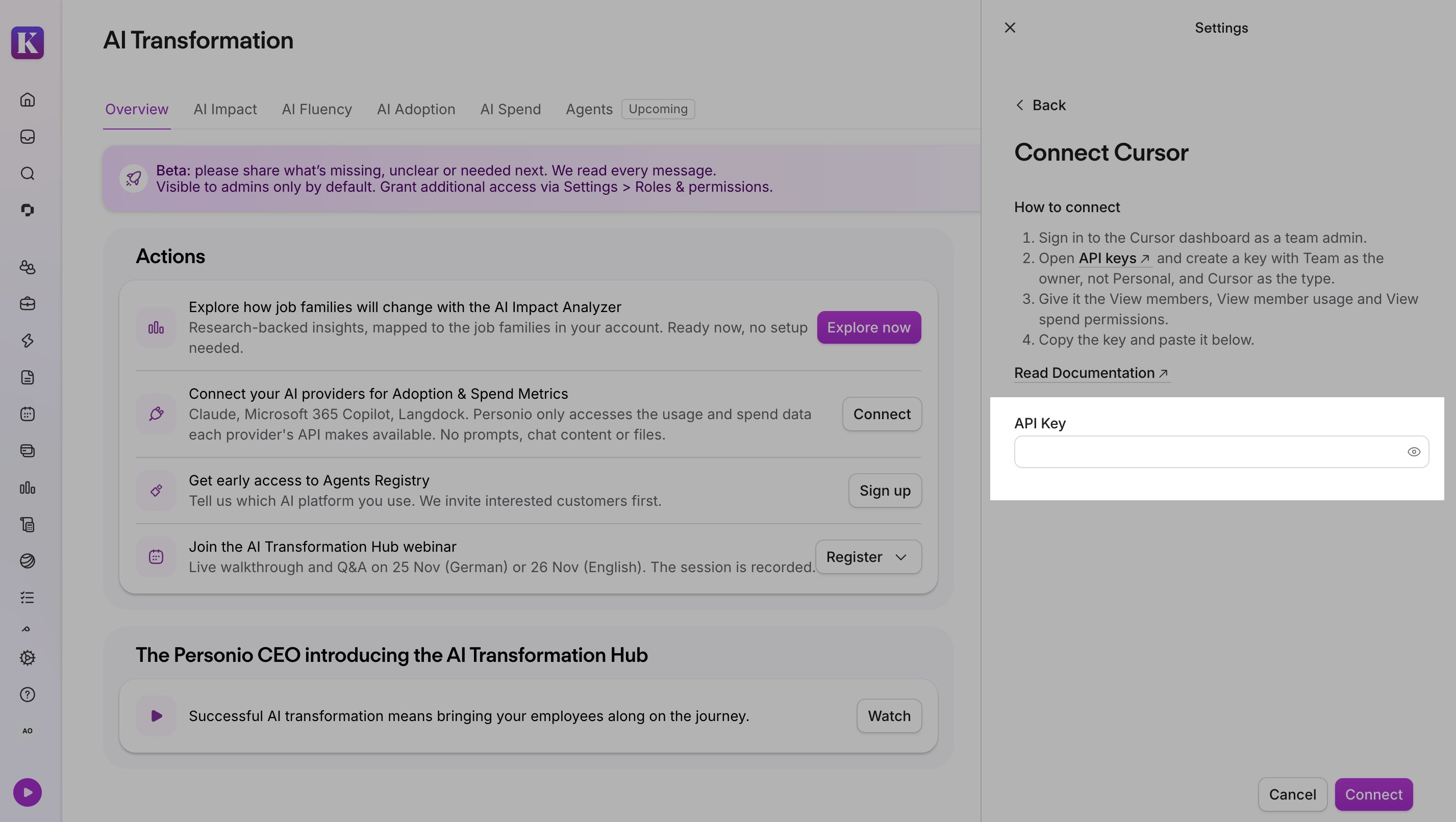
To make sure the connection worked, click Settings in the upper-right corner, and check that Cursor is connected.
What happens after you connect
After you connect Cursor, Personio imports your usage data one day at a time, up to 365 days back. The earliest date is 1 January 2026. The first import takes between a few minutes and a few hours, depending on your company size and usage. After that, the data syncs every night.
Personio imports the following data from Cursor:
- User email address
- Date
- Model
- Number of requests
- Tokens
- Cost beyond your seats
Personio doesn't import or store prompts, code, chat content, or files.
Personio matches Cursor usage to an employee by email address. If an email address doesn't match an employee in Personio, that usage doesn't appear in the AI Transformation Hub. However, Personio still stores that usage.
Disconnect Cursor
To stop Personio from importing Cursor data, remove the connection in Personio and delete the API key in Cursor:
- In Personio, go to AI Transformation and click Settings in the upper-right corner.
- Click Cursor to show its details.
- Next to the API key, click the three dots and then Delete.
- In the Cursor dashboard, go to API keys.
- Delete the API key that you created for Personio.
After you disconnect, Personio deletes the imported Cursor data within 30 days.
Troubleshoot connection issues
I don't see the AI Transformation Hub or the option to add a connection.
You're likely missing the required permissions. Ask your Administrator to check them.
Personio says "Cursor rejected the API key".
Check that you created a Team key, not a Personal one, and that it has the View members, View member usage, and View spend permissions. A key created before your team was on a paid plan or moved to the new dashboard doesn't work. Create a new one.
An employee's usage is missing.
Check that the employee's email address in Cursor matches their email address in Personio.
The Spend tab doesn't show individual cost.
Your usage is likely covered by your seats. Spend only shows what Cursor charges beyond them.
No data appears after I connect Cursor.
The first import can take a few hours for large teams. If no data appears after that, check that the API key has the View members, View member usage, and View spend permissions.