Premiums are extra pay for work at special times, such as Sundays, nights, and public holidays. Personio calculates them for you. Employees track their time as usual, and Personio sorts the tracked time into premium hours and calculates the premium pay due.
Premiums with custom rates are available to all companies with a German legal entity, regardless of whether you use a payroll product. You can set your own names and rates for each premium, and manage premiums together with your overtime settings in one policy.
Employees see their premium hours in their timesheet. If you use a payroll product, Personio sends the premium data to it.
This article explains how to set up an Overtime and Premiums policy, customize the rates, and choose how overlapping premiums combine. If you track time in a third-party tool, you may be able to import premiums instead.
Premiums with custom rates are currently in beta and only available to selected customers. You can test the feature and share your feedback before the wider release. To share feedback, go to Settings > Attendance > Overtime and Premiums. In the banner at the top, click Give feedback.
Before you start
Permissions
To set up premiums with custom rates, you need Edit permissions for the Attendance > Attendance settings section.
Availability
Personio activates the beta for selected accounts. You can't turn it on yourself, and the premium settings only appear in your account after activation. Premiums are only available on the new overtime system.
Other requirements
- Your company needs at least one active German legal entity in Personio. You don’t need to use a payroll product.
- We’re rolling out premiums in stages, and only to accounts that use the new overtime system. If you don’t see premiums settings in your account, they aren’t available to you yet. What you see in the product might not match this article.
- Premiums depend on time tracking data. To use premiums, you need to use time tracking in Personio. This means that your employees either track time in Personio or you import tracked time into Personio. If you use a third-party time tracking tool to track and calculate premiums, you may be able to import premiums instead.
- If you use Personio Payroll or Preliminary Payroll, Personio sends Premium data to these products. DATEV isn’t supported yet.
Create an overtime and premiums policy
An Overtime and Premiums policy holds your overtime settings and your premium settings in one place. You can configure both to match your company’s overtime and premium rules. You can turn on the overtime settings, the premium settings, or both. You need to turn on at least one.
Follow these steps:
- Go to Settings.
- In the Time off & attendance section, click Attendance.
- Below Policies, click Overtime and Premiums.
- In the top-right corner, click New overtime and premiums policy.
- Add a name and description for your policy. We recommend using a descriptive name to help you identify the policy settings and a description with more details.
- Under Select how overtime and premiums are determined, select Calculate in Personio.
- If you use a third-party time tracking tool, you may be able to import your premiums instead. In this case, click Import from an external tool and follow the instructions in our dedicated article.
- In the Overtime section, choose whether to allow overtime tracking. If you allow it, configure the overtime settings as needed.
- Note: Personio doesn’t calculate premiums on overtime hours yet. If you pay extra for overtime, you need to add the premium manually when you compensate the overtime. Personio calculates premiums for Sunday, night, and public holiday work automatically.
- In the Premiums section, select Add premium types and turn on each rule you want to use. If you select more than one, you need to define how Personio manages overlaps.
- Customize the premium rules, as described below.
- Review and save your policy.
Customize the premium rules
Personio provides five premium rules for Germany. You turn on the rules you want to use and customize the name and rate of each one. The time window of each rule is prefilled and fixed. Keep in mind the following:
- The name needs to be unique within the policy and can have up to 28 characters. If you use DATEV, keep the name to 33 characters or fewer.
- The rule name appears on your employees’ payslips. Use names that match your payroll and legal documents.
- If you enter a name that is not unique or a rate that is not a number or is outside the range, you see an error. You cannot save the policy until you fix it.
- If you need to edit the rate, you can enter a number from 0.1% to 900%. You can use decimals.
This table shows each rule, its time window, and its default rate.
| Rule | Time window | Default rate |
| Sunday premium |
Sundays, 00:00 to 24:00. If work begins before midnight, the window extends to 04:00 on Monday. |
50% |
| Night premium | Every day, 20:00 to 06:00. | 25% |
| Higher night premium |
Monday to Sunday, 00:00 to 04:00. Applies only if work starts before 00:00. |
40% |
| Holiday premium |
All public holidays, 00:00 to 24:00. Also 31 December, 14:00 to 00:00. Personio bases this on each employee’s workplace public holiday calendar. Applies if work starts before 00:00 on the day before a public holiday, on a public holiday, the day after, or on 31 December. |
125% |
| Major holiday premium |
25 and 26 December and 1 May, 00:00 to 24:00. Also 24 December, 14:00 to 00:00. Applies if work starts before 00:00 on 25 December, 26 December, or 1 May, or on the day after. |
150% |
Define the rules for overlapping premiums
Sometimes more than one premium applies to the same hours. For example, an employee works on a Sunday night. You choose one setting for the whole policy:
- Combine rates: Personio combines the rates of all premiums that apply. This is the default setting.
- Apply highest rate: Personio pays only the premium with the highest rate.
Example:
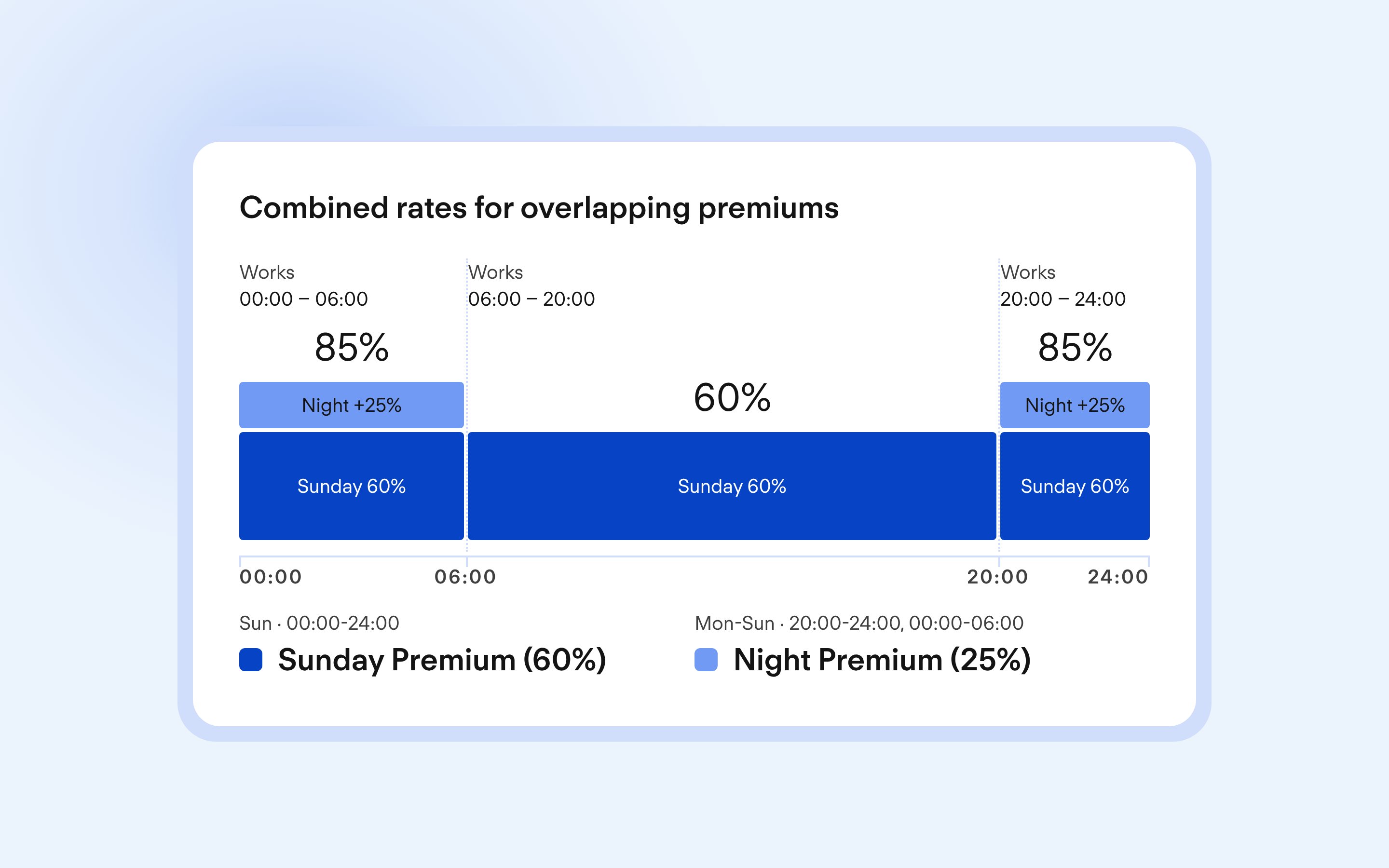
Your Sunday premium rate is 60%, and your Night premium rate is 25%. The rate Personio pays depends on the time of day an employee works on a Sunday and on your overlap setting.
Hours worked between 06:00 and 20:00 earn only the Sunday premium, so Personio pays 60% regardless of which overlap setting you choose. Hours worked between 00:00 and 06:00, or between 20:00 and 24:00, earn both the Sunday and Night premiums. Personio pays 85% with Combine rates, or 60% with Apply highest rate.
| Hours worked on a Sunday | Premium rates that apply | Combine rates | Apply highest rate |
| 00:00 to 06:00 | Sunday and Night | 85% | 60% |
| 06:00 to 20:00 | Sunday | 60% | 60% |
| 20:00 to 24:00 | Sunday and Night | 85% | 60% |
Keep in mind
- One exception always applies, whichever setting you choose. Under German tax rules (§ 3b EStG), Sunday and public holiday premiums can’t be added together. If Sunday and a public holiday overlap, Personio pays the higher of the two rates and classifies the hours under a public holiday. Public holidays have the higher tax-free allowance.
- You cannot set a different rate for a specific combination of rules, such as Night and Public Holiday.
What employees see in their timesheet
Employees track their time as usual. After you assign the policy, Personio adds any premium hours worked to the timesheet automatically.
In the Attendance tab, employees see:
- A Premium hours card with their total premium hours for the month. They can click Show breakdown to see the hours for each premium category and its rate.
- A Premiums column that shows the premium hours for each day.
Learn more about how employees can review their attendance data.
Review premiums in the Compensation tab
If you set up premiums, you can see the premiums an employee earns each month in their compensation profile. Premiums only appear once the employee tracks hours that qualify for a premium.
To review an employee’s premiums:
- Open the relevant employee profile.
- Click the Compensation tab.
- In Overview, find the Premiums card.
- Click the card to review the details of the employee’s premiums in a given month. This includes the premium type (for example, Sunday or night), the rate, the hourly rate, the hours, and the amount.
If premiums overlap, the table shows each entry according to your overlap setting. With Combine rates, the entry shows the combined rate. With Apply highest rate, it shows the highest rate. Learn more about how overlapping premiums work.
Note that the system rounds the subtotals per premium type and the total separately. This means the sum of the subtotals can be different from the total.
For an employee to see their compensation profile, they need View permissions for their own Salary & compensation > Salary information section.
How premiums get to your payroll product
Personio sends premium data to your payroll product. Here’s how it works:
- Employees track their time as usual.
- Personio sorts the tracked time into premium hours, based on your policy.
- Personio passes the premium data, including the rule name, rate, and hours, to your payroll product. What you need to do next depends on your payroll product.
- Your payroll product handles tax classification.
The next steps depend on your payroll product:
Personio Payroll
Personio Payroll needs to know how to pay each of your premium rules. Our payroll team sets this up when you request it.
- Create, save, and assign your policy.
- Contact our Payroll Support to map your premium rules to pay codes. Tell them:
- The name of each premium rule you turned on.
- Which premium it is: Sunday, night, higher night, holiday, or major holiday.
- Wait for confirmation from Payroll Support that the mapping is done before you run payroll.
- During your payroll run, review the premiums for each employee. If a premium is wrong, correct the time entry in Personio. Payroll recalculates it automatically.
Contact Payroll Support as early as possible. The mapping isn’t automatic, and until it’s done, you can’t approve payroll.
Whenever you turn on a new premium rule later, repeat step 2.
Preliminary Payroll
Personio sends premium data to your preliminary payroll automatically, so you don’t need to do anything. Premiums appear as columns in the table under Payroll > Salary, and in the Salary sheet of your export. The export fills in the columns for employees who have a premium. To display the premium columns in preliminary payroll:
- Go to Payroll and open the relevant period.
- Click the Salary tab.
- Click Columns.
- Turn on the premium columns. They aren’t displayed by default.
- Optional: Reorder the columns.
Understand current limitations
These features aren’t available yet:
- Custom time windows for Sunday, Night and Holiday premiums. The time window of each rule is fixed. Custom time windows are planned for a future update.
- Saturday and weekend premiums.
- Premiums for on-call, work travel, and training.
- Automatic time off in lieu (TOIL) for night, Sunday, and public holiday work.
- Time balance for night, Sunday, and public holiday work.
- A separate approval step for premiums. Premiums follow your existing time approval process.
- Tiered rates and rules based on consecutive working days.
- Premiums on overtime hours.
You cannot edit or remove a premium directly. To correct a premium, correct the underlying time entry. Personio recalculates the premium automatically.
A shift that spans midnight counts entirely toward its period start date. A Sunday premium earned just after midnight can therefore appear on the timesheet for Saturday.
During the beta, Personio may change the experience and behavior of premiums based on feedback.
Next steps
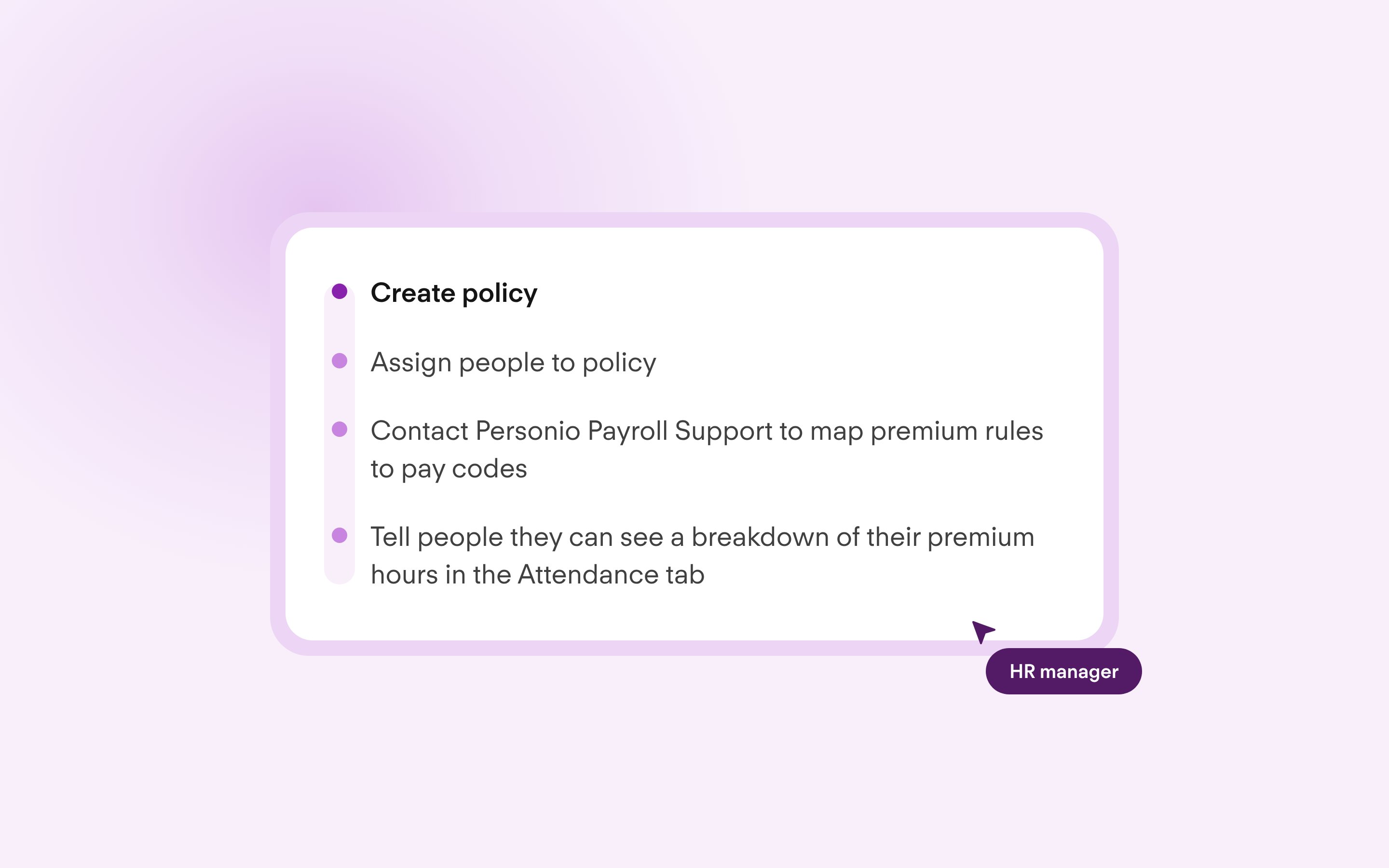
- Once you’ve created the policy, assign it to the relevant employees.
- If you use Personio Payroll, contact Personio Payroll Support to map your premium rules to pay codes before your first payroll run.
- Let your employees know that they can see a breakdown of their premium hours in their Attendance tab.
- To edit or turn off premium rules, follow the same steps for editing other attendance policies.
- Coming soon: Report on premium hours and spending with dedicated report templates.