This article explains how to review an employee's lifecycle events through the History tab in their employee profile. You can switch between a high-level timeline of milestones and a detailed table to audit specific attribute changes.
Before you start
- To view an employee's lifecycle event timeline, you need View permissions for the Employee profile > Employee history overview section.
- To see the detailed history view, you need View permissions for the Employee profile > Employee history - Details section.
- To see an event, you need View permissions for at least one Employee profile section that contains an attribute in the change set. You only see the attribute updates from sections you have permissions for.
Access the timeline view
The timeline view shows all lifecycle events for an employee in chronological order. Personio groups attributes changed during a single lifecycle event into one timeline entry, so you get a clear high-level view of an employee's milestones.
Each entry on the timeline lists a change type. It can be a:
- Lifecycle event: Promotion, Internal transfer, or Compensation change.
- Profile edit: updates to certain attributes related to the employment, like status, workplace, weekly working hours, position, department, or salary, made outside a structured lifecycle event. Changes like IBAN, address, or other custom fields don't appear here. You only see them in the detailed history view.
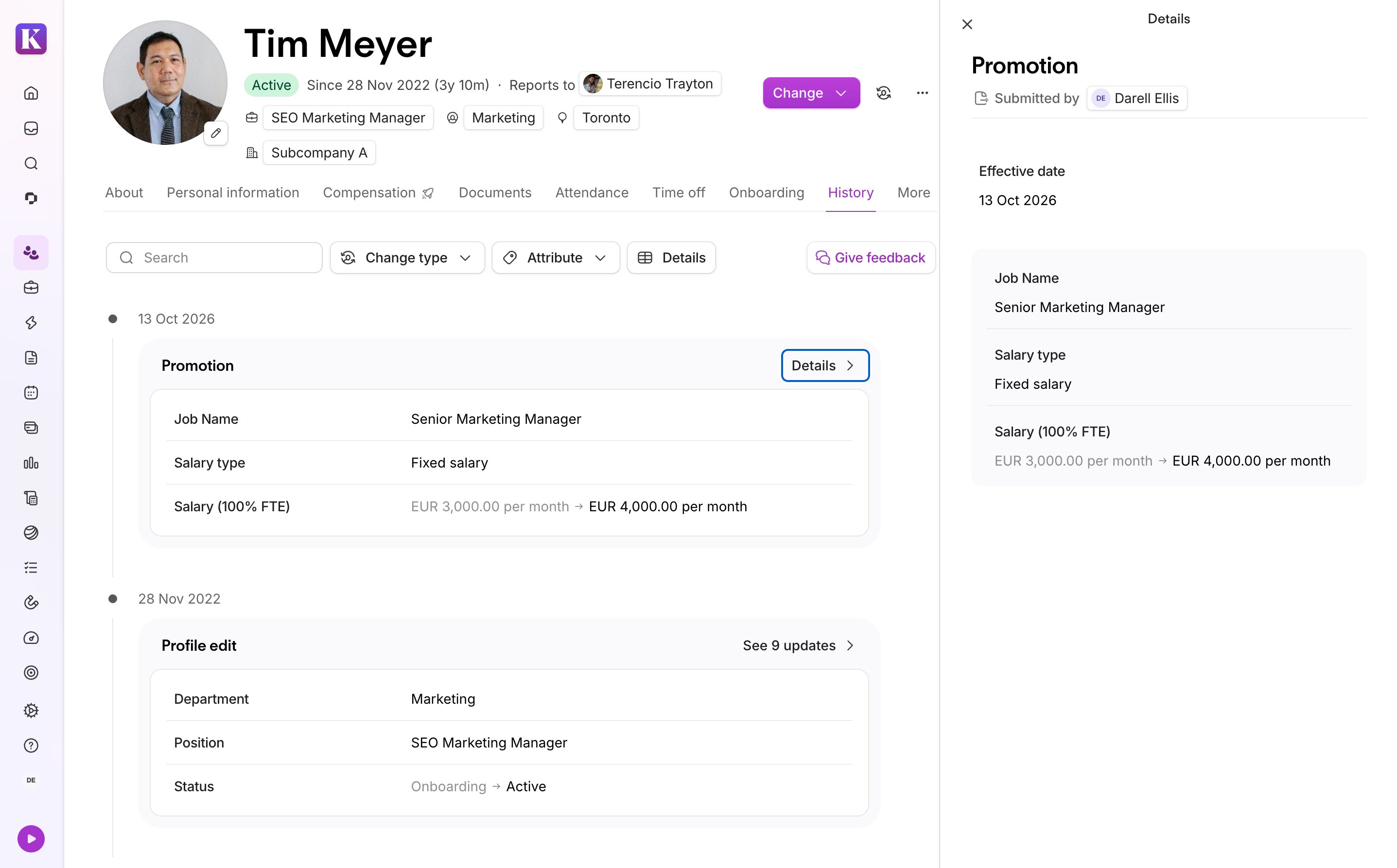
To see an employee's lifecycle timeline:
- Go to the employee's profile.
- Click the History tab.
- Review all changes to the employee, listed in chronological order.
- Use the sort and filter options to refine the view.
- Optional: to see more info about how attributes changed during a specific event, like their old and new values, effective dates, or any submitter comments, click Details on the timeline event.
If you change two or more attributes on the same day outside an event, Personio automatically groups them into a single milestone.
Access the detailed history view
The detailed view of the History tab shows a table of all past attribute changes made to an employee's data.
- Each attribute update appears in its own row.
- A dedicated column tags each row with its event type, like Promotion, Internal transfer, or Profile edit.
- Use the search bar or sort and filter options to refine the table by attribute, change type, date, or other column criteria.
The table columns show:
- Application date: when the change took effect in Personio.
- Old value: the attribute value before the change.
- New value: the attribute value after the change.
- Editor: the person who made the change.
- Requested: if an approval process applies, the person who requested the change.
- Approved: if an approval process applies, the person who approved the change.
- Creation date: when the change was entered into the system. This isn't the same as the application date.
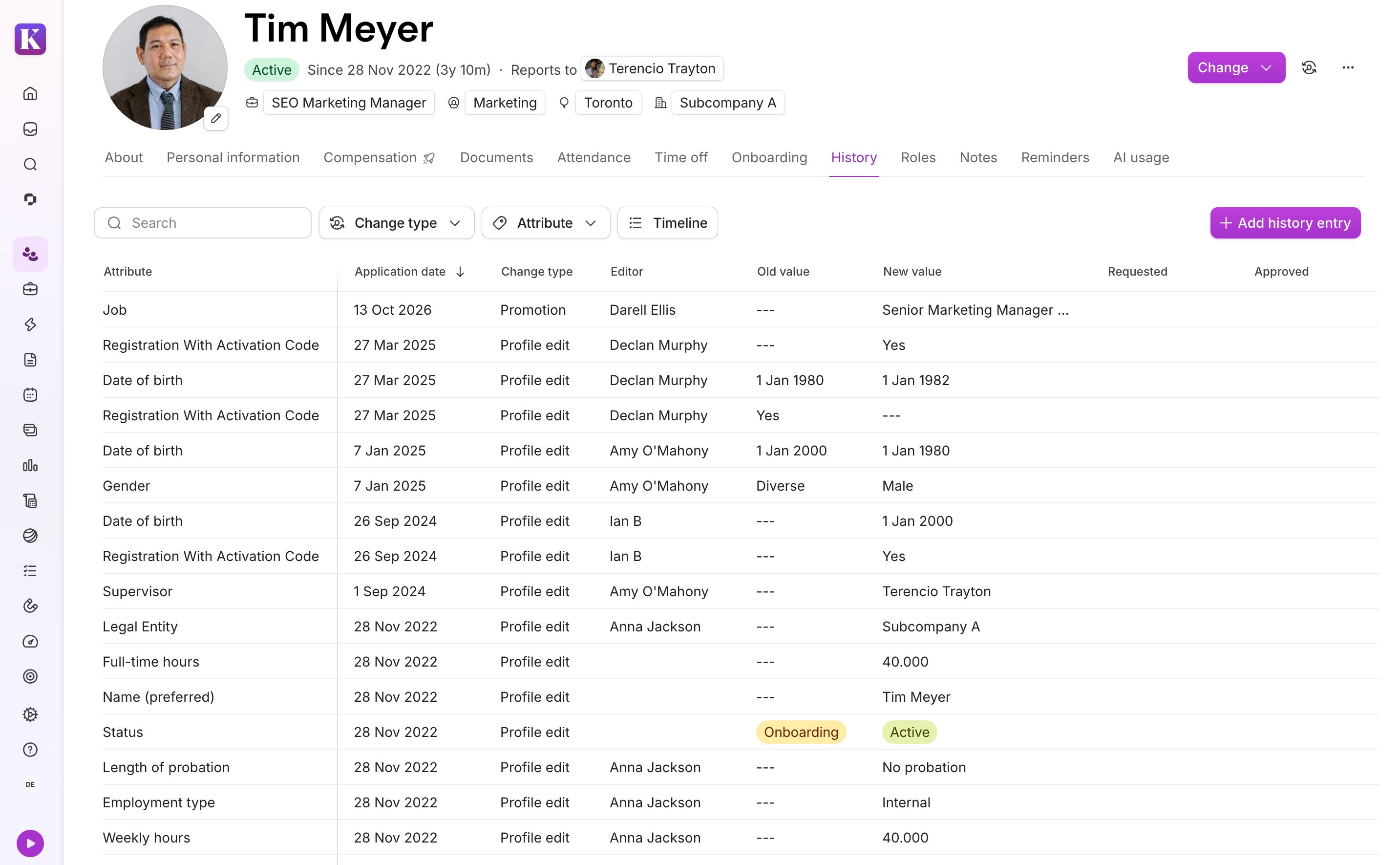
To see a detailed view of changes in an employee's data:
- Go to the employee's profile.
- Click the History tab.
- Click Details.
Note:
The detailed history view excludes fixed salary and other compensation attribute changes. You can only view compensation changes in the timeline view.