This article explains how to record lifecycle events in Personio. Use lifecycle events to update every attribute you need in one guided flow when an employee reaches a career milestone, like a promotion, an internal transfer, or a compensation update.
Before you start
- To record a lifecycle event, you need:
- Edit permissions for the Workflows > Initiate Lifecycle Event section.
- Edit permissions for each Employee profile section that contains an attribute included in the lifecycle event.
- If the event includes a compensation change, Edit permissions for the Salary & Compensation > Salary information section.
Event types
When you record a lifecycle event, you can choose from these types:
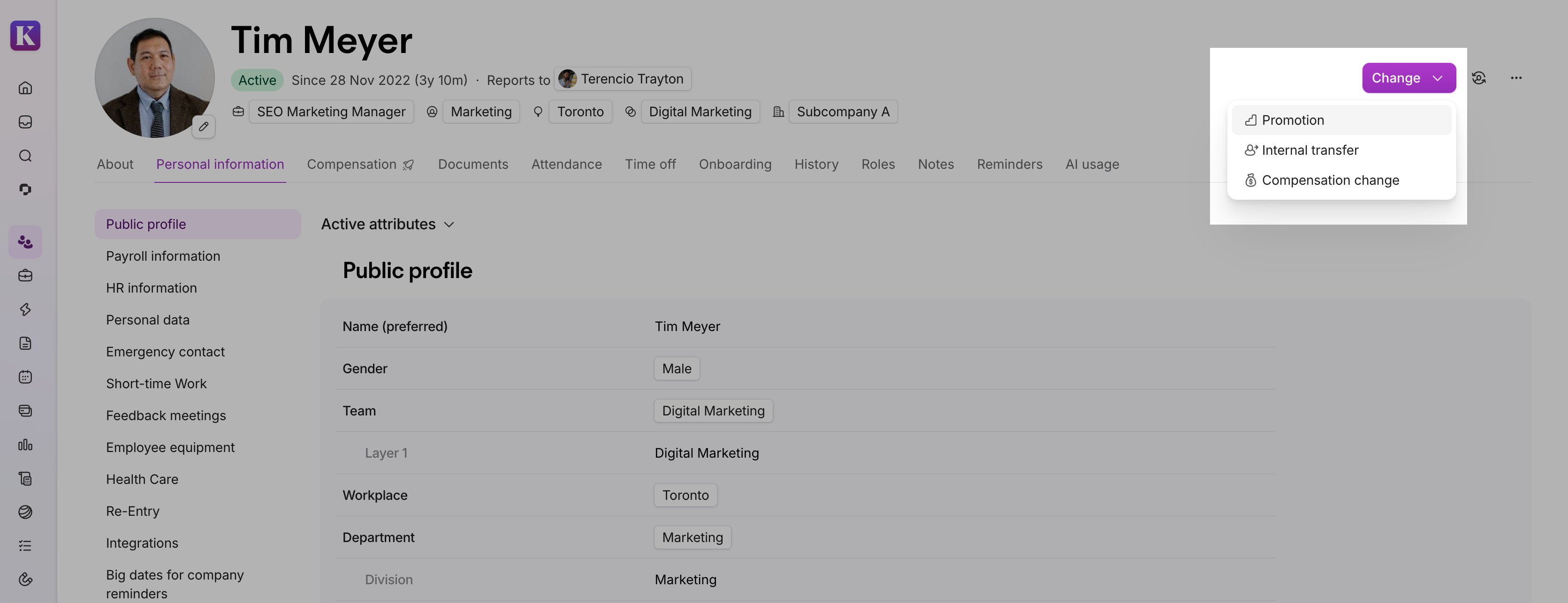
- Promotion: a change to position or job, usually alongside a base salary change.
- Internal transfer: a change to team, department, or supervisor, with no compensation change.
- Compensation change: a change to base salary or recurring compensation.
You can choose either Promotion or Internal transfer as the primary event type, not both. You can add a Compensation change to either type, or submit it as its own standalone event.
Record a lifecycle event
Record an event whenever an employee is promoted, moves to a different team or department, or has a compensation change, instead of updating each attribute separately on their profile.
- Go to the employee's profile.
- Click Change.
- Select the lifecycle event type you want to record.
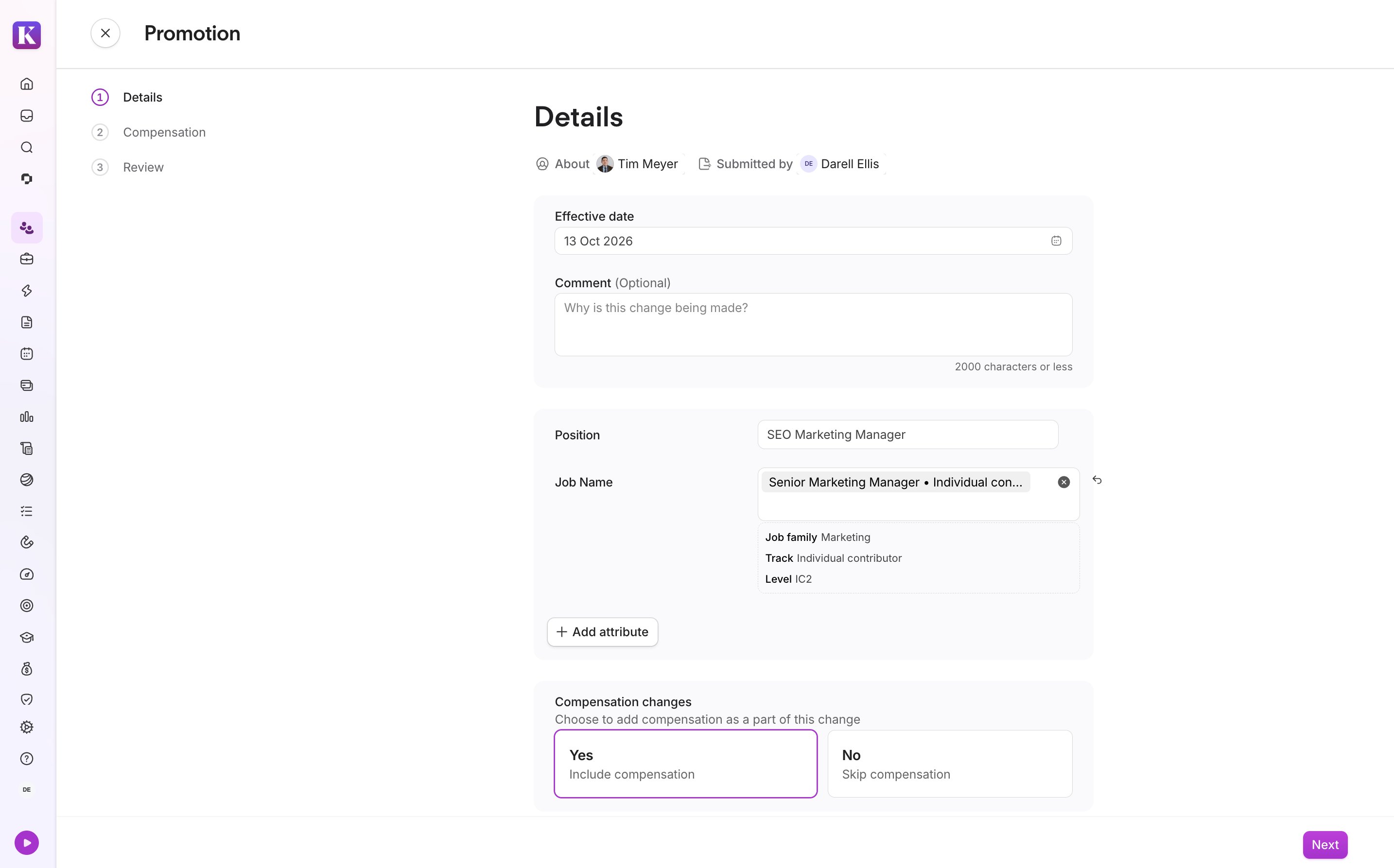
- Set the Effective date for the event.
- Select the profile attributes you want to update.
- Optional: click + Add attribute to include updates to any additional attributes you have permissions to edit.
- Optional: include a Compensation change with the event. Review the employee's current base salary and recurring compensation, and set new values from the event's effective date.
- Review your changes, then click Submit.
Effective dates
One effective date applies to the whole event, including any compensation update inside it. Keep this rule in mind:
- Two events can't share the same effective date for the same attribute. If they conflict, Personio blocks the event and highlights the conflicting attribute and event.
Delete a lifecycle event
You can delete lifecycle events for employees. When you delete an event, you delete every attribute update in that change set, including any compensation update inside it. You can't delete a single attribute update from a lifecycle event.
To delete a lifecycle event for an employee:
- Go to the employee's profile.
- Click the History tab.
- Find the lifecycle event.
- Click the three dots, then click Delete.
FAQ
Why don't I see the Change button on an employee's profile?
To see the Change button, you need Edit permissions for the Workflows > Initiate Lifecycle Event section and View permissions for the employee's profile. Ask your account Administrator to set up these permissions for you.
I see the Change button but can't submit the event. What's wrong?
You need Edit permissions for every Employee profile section that contains an attribute in the lifecycle event. If the event includes a compensation change, you need Edit permissions for the Salary and Compensation > Salary information section. One missing permission blocks the whole event.
Do I need to migrate my existing employee history?
No. Your existing history stays visible and complete. It's labeled as Profile edit, along with anything you keep editing directly in the Personal Info tab.
Can I record lifecycle events in bulk?
You can record a lifecycle event for one employee at a time. Bulk or mass changes aren't supported.
Can I correct a mistake in a past event?
Not directly. To correct information in a lifecycle event, you need to delete the event and add a new one with the correct information.
What rules and validations apply when updating compensation details?
Compensation updates follow the same validation rules as the Compensation tab. Amounts and currency are mandatory, base salary values can't be negative, and you can't enter two base salary changes with the same effective date. If a more recent compensation change already exists, a notification appears directly in the form.