This article explains how to check an individual employee's combined permissions across all the roles they're assigned to. It also explains how to compare the permissions of two or more employee roles side by side. Comparing roles helps you spot overlaps or gaps before you assign them to employees.
Before you start
- You need an Administrator role to compare employee roles and permissions.
Review the roles and permissions assigned to an employee
To check all the roles assigned to an employee and see their combined permissions, follow these steps:
- Go to Settings.
- In the People section, click Roles and permissions.
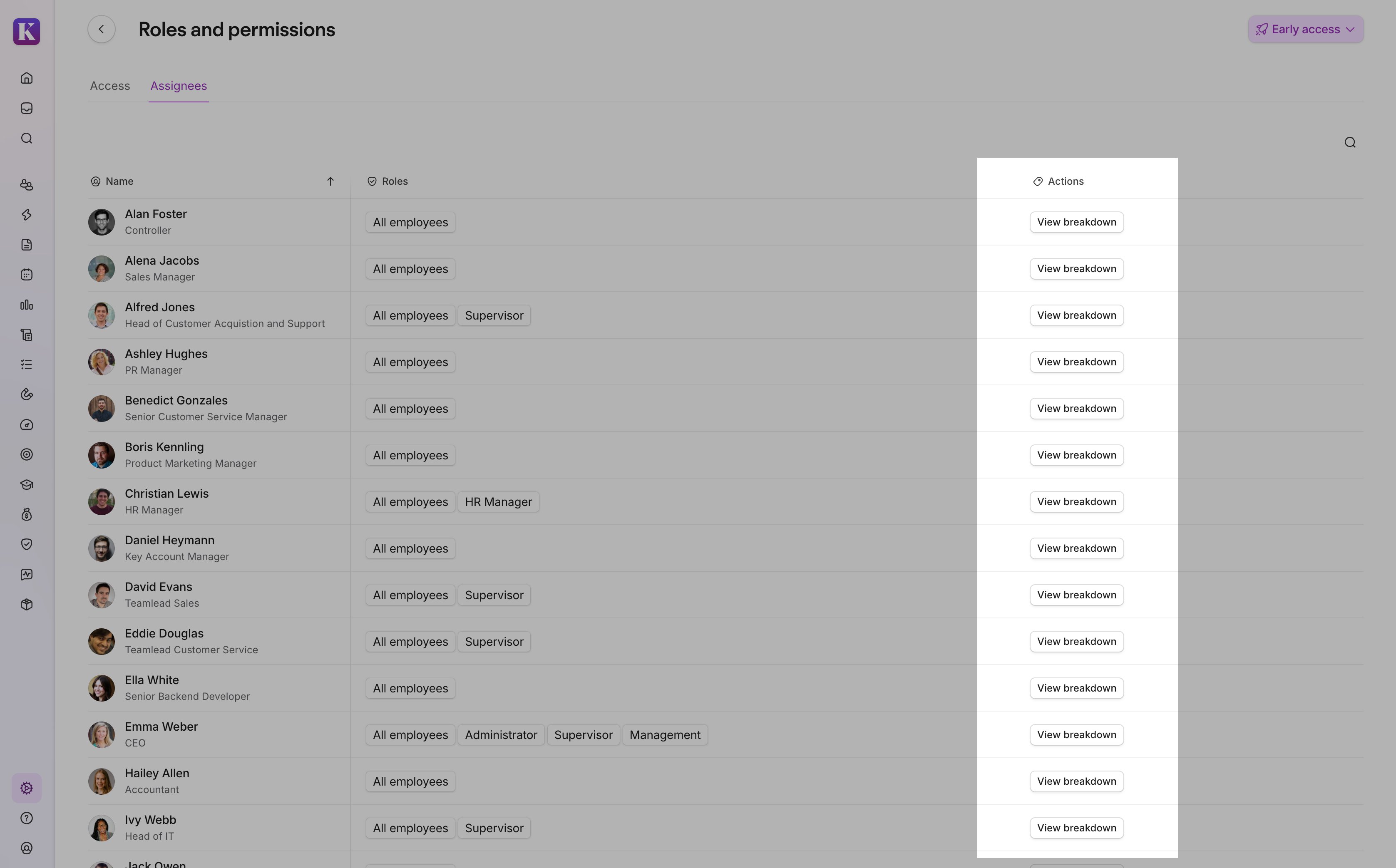
- Click the Assignees tab.
- Search for the employee.
- Check the Roles column to see all the roles they belong to.
- Click View breakdown to see their combined permissions.
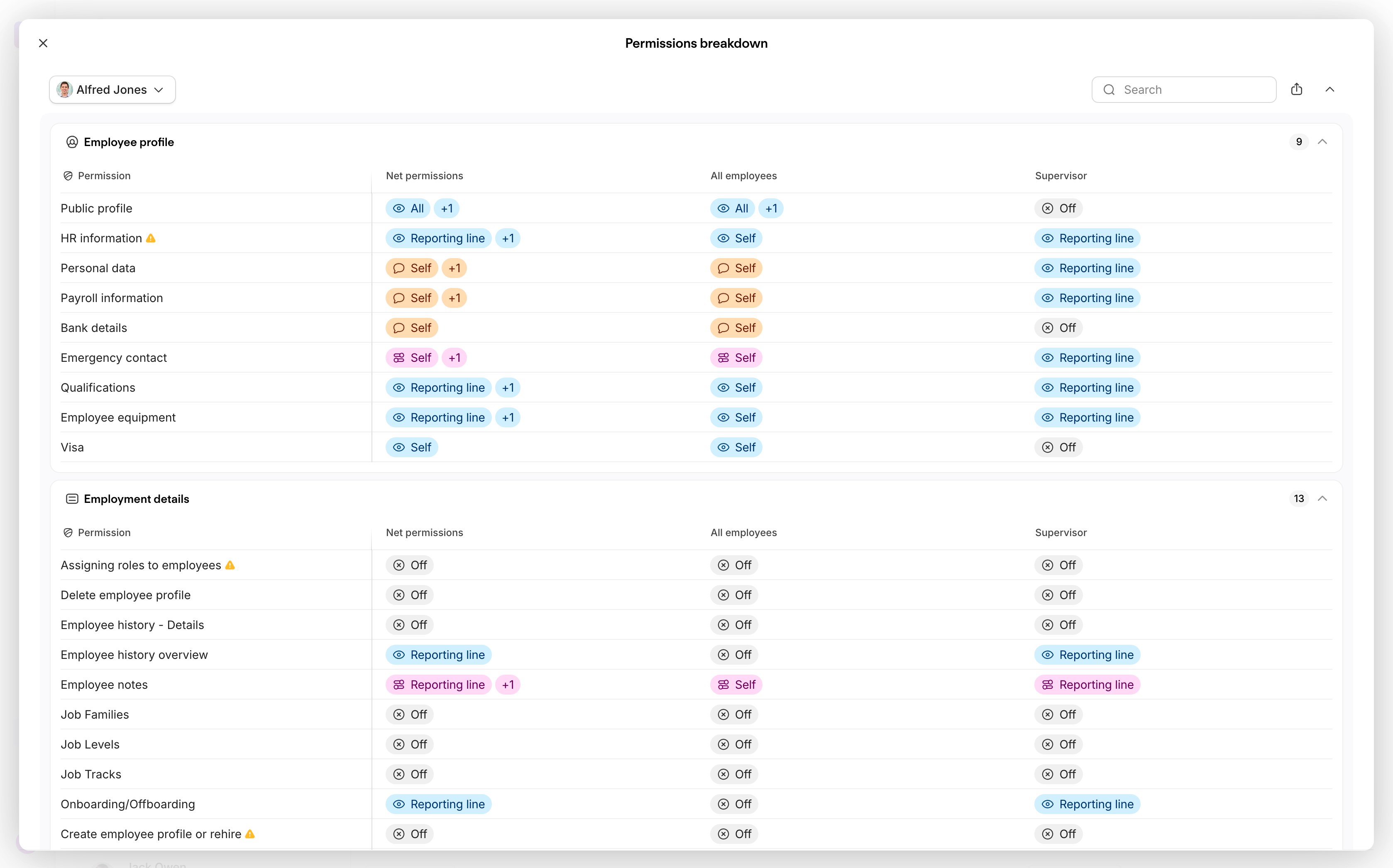
In the Permissions breakdown window, you can:
- View a role-by-role comparison: Each assigned role appears as a column, so you can see which role grants which permission, and at what scope (for example, Reporting line, All, Self, or Legal entity is own).
- Check net permissions: The Net permissions column shows the combined result for an employee across all roles for each permission, with a count of how many roles contribute to it (for example, +2).
- Review permissions by category: The table uses the same categories as the permissions interface, like Employee profile, Employment details, and Salary and compensation.
- Search permissions: Use the search option to filter the table for specific within the breakdown. For example, search "salary" to filter the table to salary-related permissions only.
- Switch users: Use the user selector at the top of the view to check another employee's permissions without closing the view.
- See warning indicators: A warning icon flags permissions that may be sensitive or misconfigured.
Compare permissions for two or more roles
To compare the permissions configured for roles, independent of which employees are assigned to them, follow these steps:
- Go to Settings.
- In the People section, click Roles & permissions.
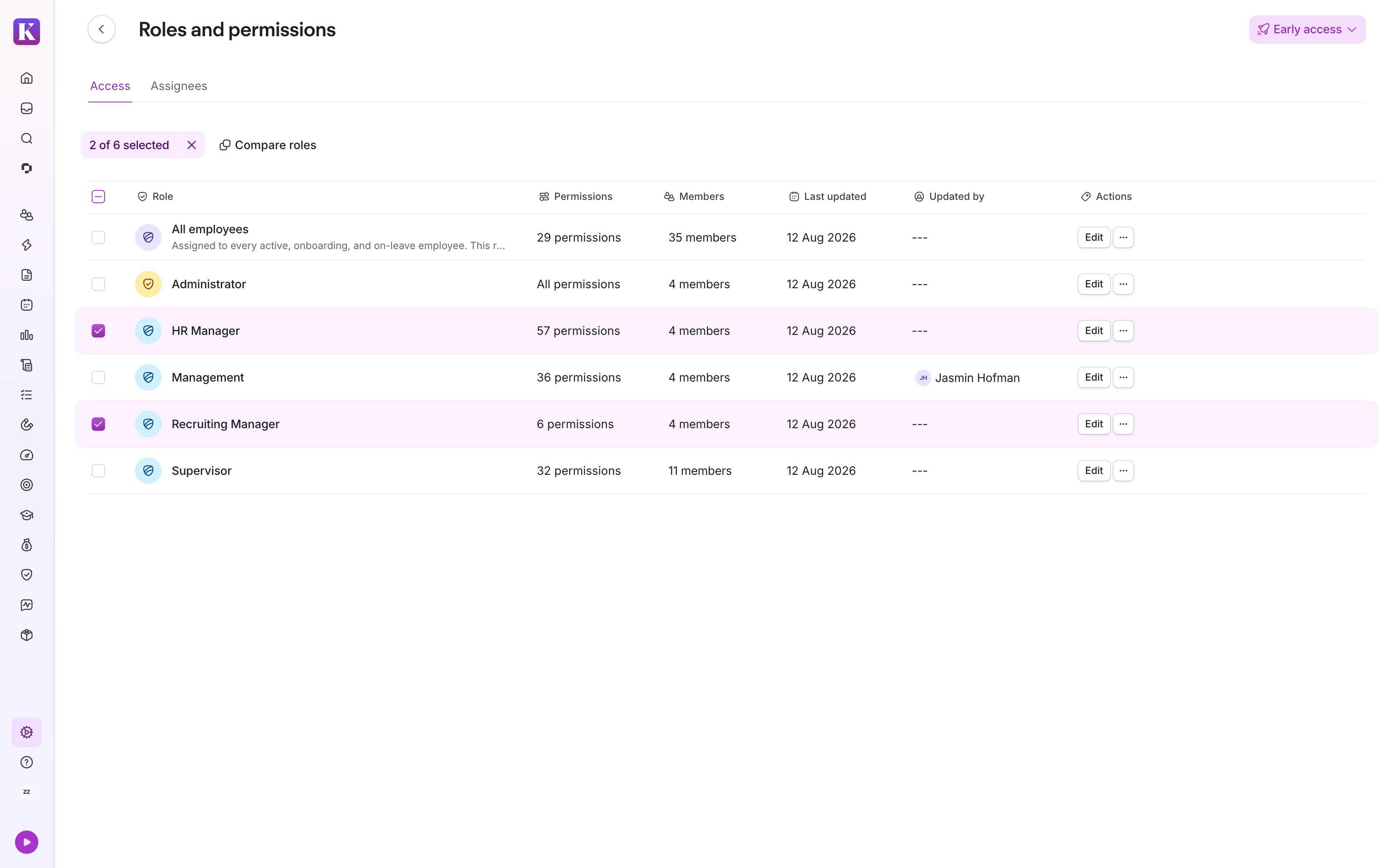
- Select the checkboxes next to two or more roles you want to compare.
- Click Compare roles in the toolbar.
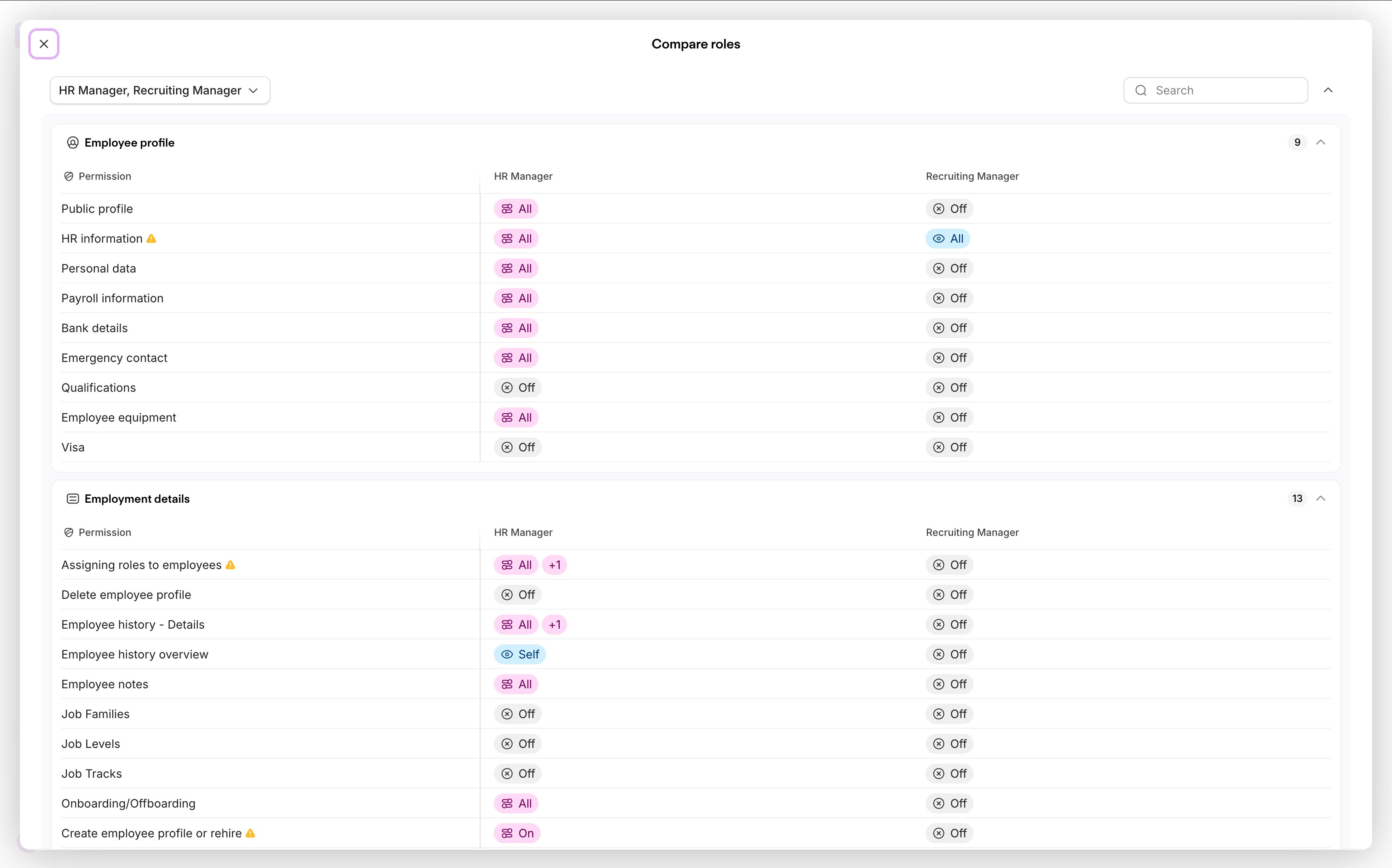
The comparison view opens. In it, you can:
- View permissions configured per role in a side-by-side table. Each selected role appears as a column, with each permission row showing the access level configured for that role (for example, Self, All, All except self, Reporting line, or Off), color-coded for quick scanning.
- Review permissions grouped by category. The table follows the same categories as the permissions interface, like Account, Employees, and Documents, with a count of permissions per category in the header.
- Search permissions: Use the search option to filter for a specific permission.
- Switch roles: Use the role selector dropdown to select different roles without closing the view and starting over.
More information
- Set up employee roles and permissions
- Manage employee roles and permissions
- Summary of permissions (New experience)