This article explains how to complete the year-to-date import or the import for carryforward values for the implementation of Personio Payroll.
What is the Year-to-Date (YTD) import?
The YTD import contains a list of all remuneration and deductions already paid since the beginning of the current payroll year. As payroll accounting refers to the annual tax and social security values in many areas, such as the income threshold, values beyond the current month must be taken into account. To ensure that your payroll is completed correctly, you must also include data from previous payroll periods of your previous payroll system in the calculation. You can upload these to Personio in the form of a YTD import.
Advantages of YTD imports
The carryforward values from the YTD import are necessary so that payroll accounting continues to be calculated correctly even if you switch to Personio Payroll. The figures contained in the YTD import are decisive for the following calculations and contribution statements:
- Calculate one-time payments
- Certificates of wage tax deduction for the total calendar year
- Complete salary statement for accident insurance
- Annual social security and accident insurance reports
- Annual tax adjustment
Note
Please note that variances may occur in the calculation of values if you decide against a YTD import in consultation with our payroll specialists.
Who should do a YTD import?
We recommend that you perform a YTD import when implementing Personio Payroll.
If you decide against this, please contact our payroll specialists and confirm in writing that you are aware that this may result in incorrect annual figures and contribution statements in the payroll at a later stage.
Fill in the import file
Once you have received the import file for the YTD import from your payroll specialist, proceed as follows:
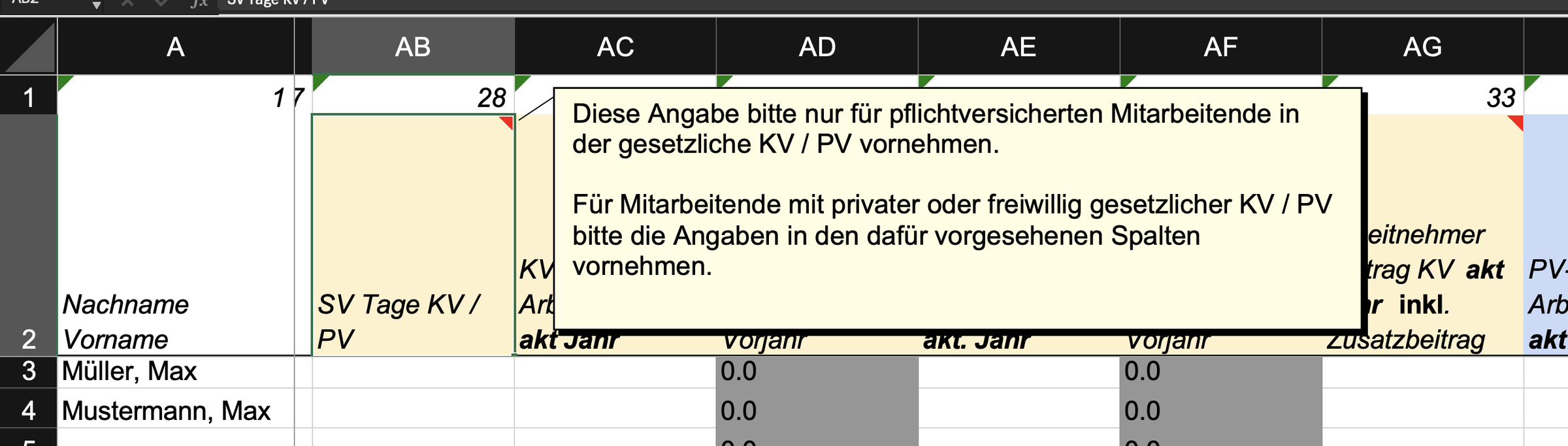
Enter the values from your employees' previous payroll accounts in the corresponding fields of the table. See the import file for help on the entries. If you do not have a value for a field, enter "0" (zero).
- Send the import file to your payroll specialist on the agreed date. They will take care of the import for you.
Filling in the import file can be complex and time-consuming. If necessary, seek support from your tax advisor or preliminary calculator.
Note on the March clause
If you go live with Personio Payroll after March, you don’t need to fill the fields marked as “previous year”. These are already automatically grayed out.
If you start using Personio Payroll between January and February of each year, discuss with your payroll specialist to what extent you are affected by the March clause for one-off payments. If the March clause does not apply to your-organization, you can fill in the fields marked "Previous year" with the value "0" (zero).