Note that to use this integration, your company must have a legal entity based in the UK. 🇬🇧
This article explains how to use the integration with Xero Payroll. You need to first set up the Xero integration.
Before you start
Permissions
To access the payroll overview and sync data with Xero, you need edit rights for Payroll in Personio.
Important to note
- The integration doesn't support ending employment. When you terminate an employment in Personio, there's currently no way for Personio to automatically set the end date for the employee in Xero. Therefore, you need to mark the employment as terminated in Xero.
- If you want to exclude an inactive employee from the sync, you need to set the attribute Include in UK Payroll to No.
- After a sync, you need to adjust Xero working patterns that don't follow an equal distribution of hours over Monday to Friday. Currently, the sync takes the Personio attribute Weekly hours and equally distributes it over Monday to Friday for the relevant employees. If an employee doesn't follow this pattern, you need to amend it in Xero.
- If you have any hourly workers in Xero, you might see an error after syncing your data when Personio surfaces the results of the sync. This is because Personio identifies employees in Xero who aren't part of the sync and shows the error message: "The following employees only exist in Xero, but not Personio[...]". This error is expected because Personio doesn't include hourly salary in the data sync. You can ignore the error.
- The integration doesn't support payslip imports from Xero to Personio. This limitation is due to Xero's API not supporting payslip transfers.
- The integration currently only supports monthly pay period calendars.
- The integration doesn’t support the employment status “worker.”
- The integration doesn’t support the Xero contract types “apprentice” or “zero hour contract.”
Check employee sync requirements
After you set up the integration, you can sync your employees’ data to your Xero tenant. For a successful sync, check your employee data meets the following requirements:
- The attribute Include in UK Payroll is set to Yes.
- The status attribute is set to Active, Inactive, or Onboarding.
- They must be assigned to an authorized legal entity.
- They must have an email address, and it must match in Personio and Xero. When you update information, the employee's email is the unique identifier between both systems.
- There are no validation errors to solve. Any errors appear in the employee profile or Payroll Xero Payroll, the latter being where you can manage your payroll sync with Xero.
Note:
The sync sends changes up to the pay period dates for salaries and other compensations. It sends new starter information up to the current sync date. This means that it doesn't include employees with hire dates after the sync date.
Understand how the integration syncs compensations
Before conducting a sync, map Personio compensations to Xero Earning. The sync only considers mapped compensations.
Note the following:
- Personio clears the employee's current earnings from their Xero pay template during the sync. This makes Personio your main system for managing compensations. Add all relevant compensations in Personio. If you don't map a fixed salary or additional compensation in Personio, Xero keeps those values unchanged.
- The sync doesn't include any Personio compensations that you haven't mapped to an earning type in Xero.
- When you sync a salary, it doesn't update the earning types.
- You can only sync one-time compensations, recurring compensations, and bonuses for monthly payroll periods or periods that include the first of the month.
- Mid-month salary prorations in custom periods are accurately synced with Xero.
Note:
If a fixed salary exists in Xero, it needs to match with the Personio value in the first sync so that the compensation can be identified. If the values for an employee don't match, Personio shows an error after the sync.
Sync your data with Xero
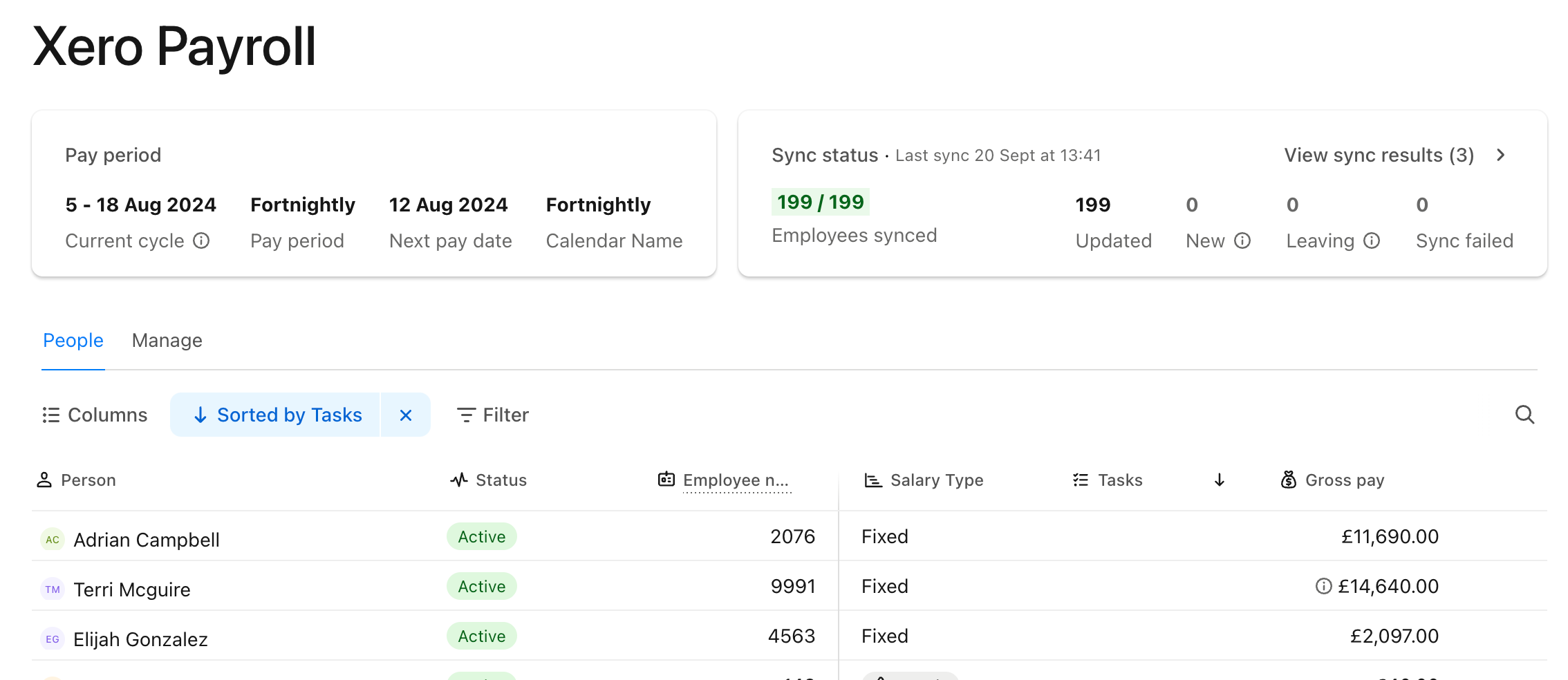
Manage your monthly sync in Payroll > Xero Payroll. In this overview, you can see all relevant employees for each existing legal entity in Personio. The integration retrieves the pay period information from Xero and includes the current payroll cycle. If there's already a draft payroll available in Xero, the sync isn't available.
To sync your Personio data with Xero, follow these steps:
- Go to Payroll Xero and choose the relevant legal entity from the dropdown.
- Review any open tasks. This ensures that the sync includes all relevant employees.
- Click on Sync with Xero to sync the data with Xero.
- Personio provides a status of the data transfer and includes any additional information about eventual issues.
Note:
The sync sends changes up to the pay period dates for salaries and other compensations. It sends new starter information up to the current sync date. This means that it doesn't include employees with hire dates after the sync date.
Add the remaining data to Xero after the sync
The integration doesn't automatically sync all relevant data with Xero. Therefore, you might need to add further information. The preliminary payroll might provide this information in a consolidated format for the relevant month. The integration doesn't support the following information:
- The sync of bonus payouts
- The sync of hourly workers
- The sync of hourly time off
- Management of student loans, pensions, and director status
- Management of working patterns other than five days
Note the following:
- The integration syncs inactive employees, but you need to provide further information in Xero. For example, ending an employment or processing a payment.
- You can sync your Personio time off to Xero Leave.