In this article, you will learn about case managers in Personio Whistleblowing, how to assign them, and how to involve external users.
Personio Whistleblowing case managers
About case managers
A case manager is:
- A designated member of your organization (or an external provider, like a lawyer) with access to view Whistleblowing cases within reporting channels to which they are assigned.
- Someone who has been briefed on the EU Whistleblowing legislation, and is usually from your HR, Legal, or Management team.
- Listed as the case manager when a reporter follows-up on their case. This means that the case manager's name is visible to the reporter and linked to any responses or updates they provide within a case's log. If a case manager doesn't want their identity revealed to reporters, consider adding a new employee profile as a workaround.
Due to the nature and sensitivity of the content within the Whistleblowing tool, only those assigned as a case manager can access it. See Varying levels of access for case managers for all the ways in which a case manager's access can vary.
Tip:
The Whistleblowing app for case management is separate from the reporting form. Anyone can access the reporting form via the organization's reporting form link.
Varying levels of access for case managers
The amount of access that a case manager has within the Whistleblowing app depends on a user's permissions in Personio, and whether they're assigned as a case manager in one or more reporting channels in the Whistleblowing app. Depending on the combination of these two variables, there are three variations of access that a case manager can have:
Case manager only
This individual has been assigned as a case manager to one or more reporting channels in the Whistleblowing app. Only Personio Administrators or users with the "Channel Administrator" permissions can assign case managers. This user:
- Can only view and respond to cases in the reporting channel(s) to which they are assigned.
- Can view the Whistleblowing Settings (including reporting channels and case managers).
- Cannot edit reporting channels or add new case managers.
- Can add, edit, and remove categories in the Whistleblowing Settings.
Personio Administrator only or Channel administrator only
This individual is a Personio Administrator or a user who has been granted "Channel administrator" permissions in Personio. This user:
- Cannot access any case lists or details.
- Can only access the Whistleblowing Settings (to manage reporting channels).
- Can view, add, edit, and archive reporting channels.
- Can add and remove case managers from reporting channels.
- Can access and copy the link to the reporting form for distribution purposes.
- Personio administrators who are not also case managers cannot see any Whistleblowing cases while impersonating another Personio user who is a case manager.
Note: Although Personio Administrators and Channel administrators can add and remove case managers from reporting channels, they cannot add themselves as case managers.
Both a Personio Administrator/Channel Administrator and case manager
This user is a Personio Administrator or has "Channel administrator" permissions in Personio. They are also assigned as a case manager to one or more reporting channels. This user has full access to the tool, meaning that they:
- Can view and respond to all cases in the reporting channel(s) they're assigned.
- Can view and edit Whistleblowing Settings like reporting channels and categories.
- Can add and remove case managers from reporting channels.
Add or remove case managers
Add case managers to a reporting channel
Case managers can be added by Personio Administrators or users with the "Channel Administrator" permissions. To add a case manager to a reporting channel, follow these steps:
- Ensure the user has a Personio profile. If they are an external user, they will still need a Personio profile. See Assign external users as case managers.
- In Personio, select Whistleblowing from the navigation bar.
- A new window opens the separate Whistleblowing app. In the top left, click Whistleblowing > Settings.
- Select Reporting channels from the left sidebar.
- Next to the reporting channel you want to add the case manager to, click Manage.
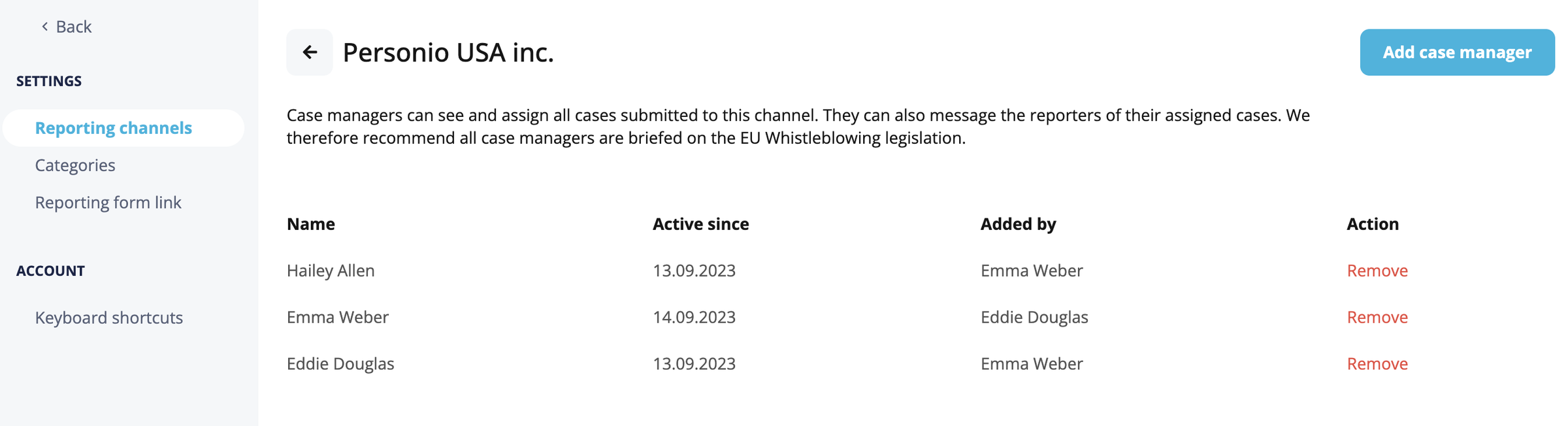
- Click Add case manager in the top right, select the case manager from the dropdown list, and click Add. The case manager now appears on the reporting channels page.
- Repeat this process across all reporting channels to which this case manager should be assigned.
Tip:
Personio Administrators or those with "Channel Administrator" permissions cannot add themselves as case managers, they can only be added as a case manager by others.
Add external users as case managers
Whistleblowing relies on Personio authentication to provide access to the product. To assign an external user as channel manager, they must have a Personio account. To create an account in Personio for an external user, follow these steps:
- Select Employees > People list from the main navigation bar in Personio.
- In the top right, click Add employee.
- Enter the details for the external user. If the external user wishes to remain anonymous, be sure to not enter their real First or Last name.
- Under HR Information > Employment type, select External and click Add employee.
- Continue to add the new user as a case manager by following the steps to add or remove case managers.
Note:
External employees are included in your billing plan and are considered in your current plan's headcount. External employees are also included in the organizational chart.
Remove case managers
Removing a case manager means that they will no longer have access to current or future cases in that reporting channel. To remove a case manager from a reporting channel, follow the steps below:
- In Personio, select Whistleblowing from the navigation bar.
- A separate Whistleblowing window opens. In the top left, click Whistleblowing > Settings.
- Click Reporting channels (under Settings on the left sidebar).
- Next to the reporting channel you want to remove the case manager from, click Manage.
- In the list of case managers, find the case manager and click Delete.
- In the confirmation window, click Deactivate.
Repeat these steps for all other reporting channels you want to remove this case manager from.
View audit trail of added or removed case managers
All changes to case managers are logged, creating an audit trail of who added each case manager, and when. This helps ensure compliance. To view all changes, follow these steps:
- In Personio, select Whistleblowing from the navigation bar.
- A separate Whistleblowing window opens. In the top left, click Whistleblowing > Settings.
- Click Reporting channels (under Settings on the left sidebar).
- Next to the reporting channel you want to review, click Manage.
- The list of case managers opens. Here you'll see:
- Under Name: the case manager(s) added.
- Under Active since: the date the case manager was added.
- Under Added by: the name of the user who assigned the case manager.
More information
- Implement Personio Whistleblowing
- Manage reporting channels and categories
- Manage cases in Personio Whistleblowing
- Personio Whistleblowing for Reporters