This article explains how to report on your employees' remaining time off balances at the end of the accrual year. You can create the report for a specific time off type, for example, paid vacation. You can then share it with key people, like supervisors, so they can remind employees to request unused time off.
This article also covers how to report on carryover days that will expire. Depending on how you've configured the relevant time off policy, unused time off can either expire or carry over into the next accrual year. If carryover has an expiration date, you can run a report to see how many carryover days employees still have left to use.
Before you start
Permissions
To create a time off report, you need either an Administrator role or the relevant permissions needed to create reports.
Report on remaining time off balances at year-end
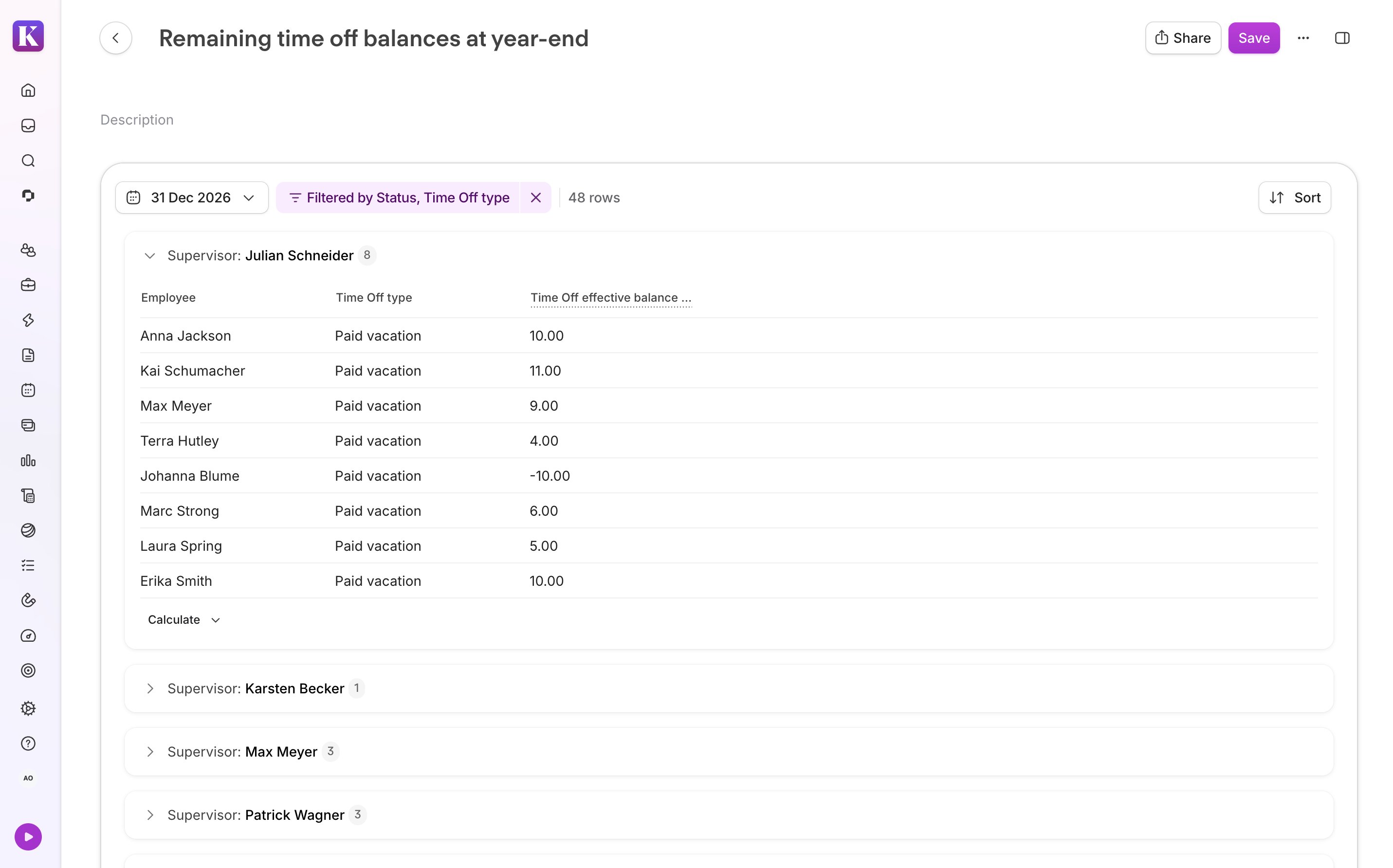
Create this report to see how many days of time off your employees will have left at the end of the accrual year. You can share the report with supervisors so they can remind their teams to request unused time off before then.
Follow these steps:
- Go to Analytics.
- Click Create report and select Standard blank report.
- Give your report a name, for example, "Remaining time off balances at year-end".
- Click the calendar icon and select the last day of the accrual year, for example, 31 December 2026. If you select a different date, the balances can look different.
- Add the following filters:
- Status equals Active
- Time off type equals [the relevant time off type, for example, "Paid vacation"]
- In the Settings section, under Data, add the following:
- Employee
- Time off effective balance - days
- Time off type
- Save your report.
Segment the report by supervisor
You can segment the report by supervisor groups. This lets supervisors easily see which employees have the most time off left to use. In the report you just created, follow these steps:
- Under Segment by, add Supervisor so each supervisor’s direct reports appear as their own group.
- In the Time off available balance - days column, click Sort descending to order employees from highest to lowest.
Once you're ready, you can share the report accordingly. Supervisors can create a workflow with the Expiring vacation days reminder template to remind their teams to request their unused time off.
Understand how the report date affects balances
The balance in your report depends on the date you select. The attribute Time off effective balance - days counts only time off the employee has already taken by that date. It doesn't subtract approved time off planned for later in the accrual year, or pending requests.
For example, let’s say Max has 30 days of paid vacation. He's already taken 15 days and has a 10-day Christmas holiday approved in December.
- If you select 1 November, his effective balance is 15 days (30 − 15).
- If you select 31 December, his effective balance is 5 days (30 − 15 − 10), because the December holiday counts as taken by then.
You can also add the attribute Time off available balance - days to your report. It subtracts approved time off planned for later in the accrual year, so it shows the days an employee can still request as of the report date. If you select the last day of the accrual year, it shows the same figure as Time off effective balance - days.
Report on carryover days due to expire
Note:
Different time off policies can have different expiration dates, depending on how you've configured the carryover settings. Create this report for employees on the same time off policy.
Create this report if the relevant time off policy allows carryover with an expiration date. Run this report as the carryover's expiration date approaches, so you can remind employees to use their remaining carryover days.
Follow these steps:
- Go to Analytics.
- Click Create report and select Standard blank report.
- Give your report a name, for example, "Carryover due to expire".
- Click the calendar icon and select the day after the carryover expiration date as defined in the time off policy. For example, if the carryover expires on 31 January 2027, select 1 February 2027. You can find the expiration date in the relevant time off policy settings.
- Add the following filters:
- Time off type equals [the relevant time off type, for example, "Paid vacation"]
- Status equals Active
- In the Settings section, under Data, add the following:
- Employee
- Time off type
- Time off carryover - days: The days carried over from the previous accrual year.
- Time off used carryover - days: The carryover days the employee has already used or has approved time off for.
- Time off expired carryover days: Learn more about this attribute in the example below.
- Save your report and share it as needed.
We recommend the following:
- Spot-check the results with a few employees. Go to their Balance tab and check that the "days will expire" figure matches the figure in your report.
- Once employees start using their carryover days, make sure your teams have adequate coverage. Supervisors can open the Team calendar and use the filters to see who is absent and when.
Example
The Time off expired carryover days column shows how many carryover days each employee will lose if they don't use them. The figure takes approved time off into account, so it decreases as employees book and get approval for time off before the expiration date. Personio uses carryover days first.
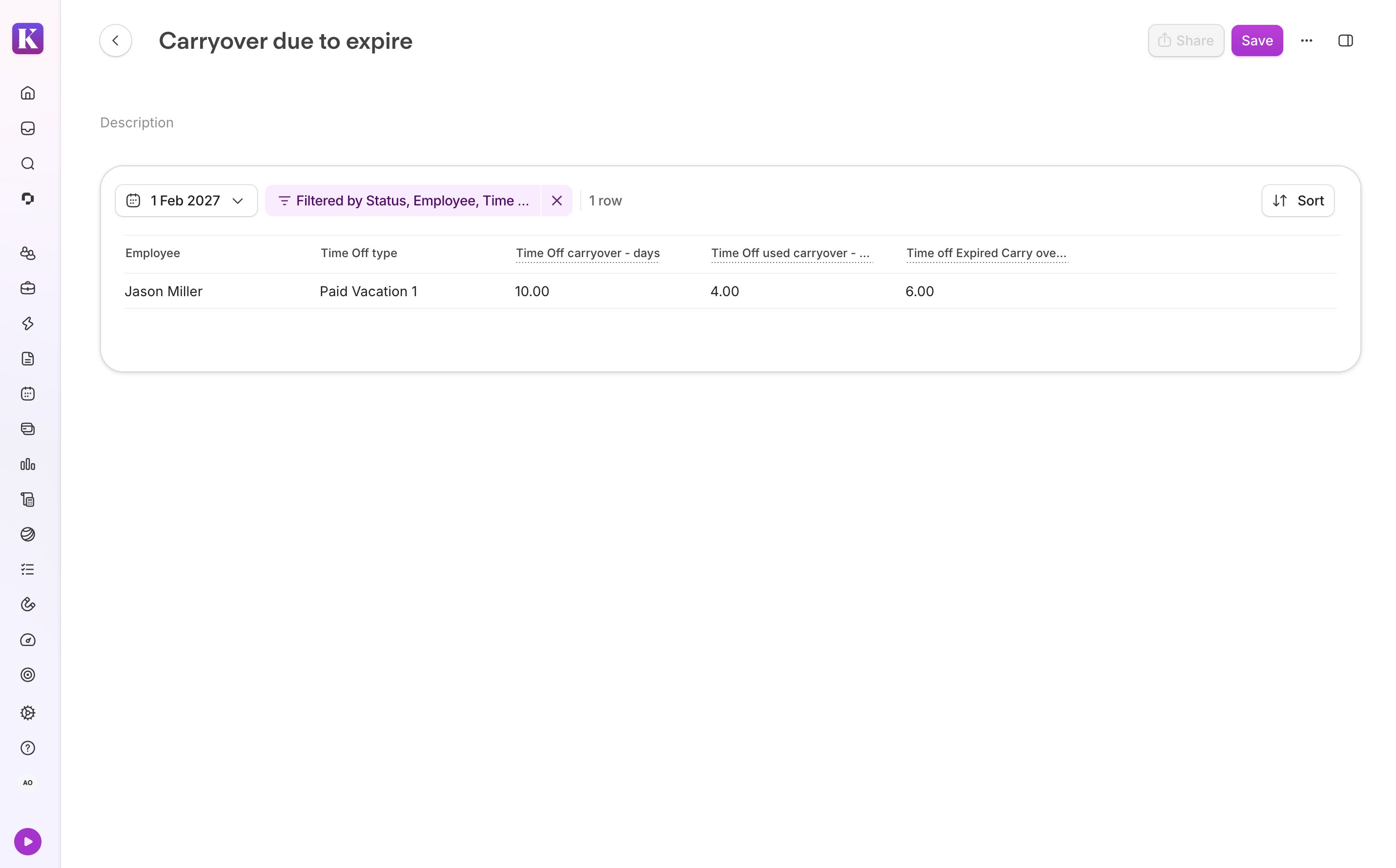
Jason carries over 10 days into the new accrual year. His carryover expires on 31 January 2027, and he has 4 days of approved time off in January. If you select 1 February 2027 as the report date, the report shows:
- Time off carryover - days: 10
- Time off used carryover - days: 4, because the approved January days count as used
- Time off expired carryover days: 6
Next steps
If you want to change the carryover entitlement or carryover expiry date for your employees, refer to our dedicated article.